
1. Introduction
Consensys is Shimmer’s Windows application for working with Shimmer3 and Shimmer3R units. With it you can program a Shimmer’s firmware, configure it, log data to its SD card or stream data over Bluetooth, see the data as it arrives, and keep, process and export the recordings.
Note: Some of the screenshots in this guide come from earlier versions of Consensys, and show a Shimmer3 or a Consensys Base6. The current version’s screens may look slightly different, and a Shimmer3R is configured the same way.
1.1. What you need
- Software: ConsensysBASIC or ConsensysPRO (Section 1.2), from the Shimmer website.
- Hardware: a Shimmer Dock, Consensys Base6 or Consensys Base15, and any Shimmer3 or Shimmer3R units. A Shimmer3R can also connect directly over USB-C (Section 6.4).
- Firmware: LogAndStream on every Shimmer. Consensys installs it (Chapter 5).
- For streaming: a PC with Bluetooth.
1.2. ConsensysBASIC and ConsensysPRO
Consensys comes in two editions, chosen when it starts:
- ConsensysBASIC is free, and works with one Shimmer at a time.
- ConsensysPRO works with many Shimmers at once, and adds event markers, processing of recorded data (filters and algorithms), advanced plotting and more. It needs a licence; you can try it free for 5 days (Chapter 3).
Where a feature is ConsensysPRO only, this guide says so.
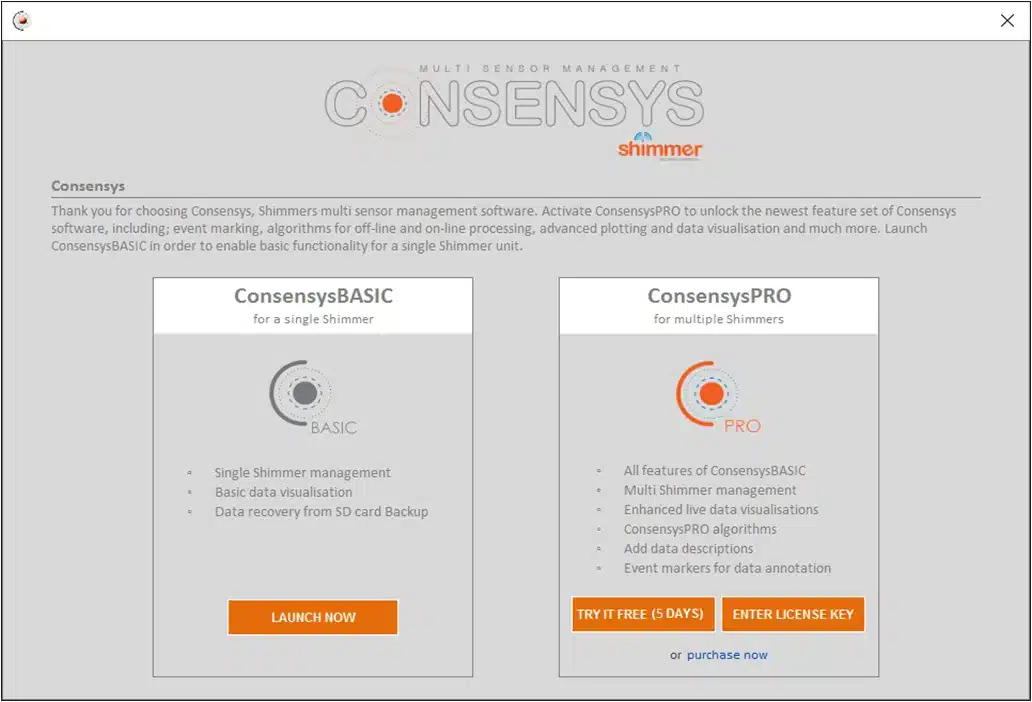
Figure 1‑1 Choosing ConsensysBASIC, activating ConsensysPRO, or trying ConsensysPRO
1.3. What’s new in Consensys 2
- 2.0: Shimmer3R support; sensor calibration built in (Chapter 8); Lab Streaming Layer and keyboard support (Chapter 9). The SDLog firmware is no longer supported: its features are now part of LogAndStream.
- 2.2: Shimmer3R over USB-C (Section 6.4).
2. Installing
These steps install Consensys, and the drivers for a Shimmer Dock or Consensys Base.
2.1. Connecting the Dock or Base
- Download Consensys from the Shimmer website.
- Take any Shimmers out of the Base or Dock; dock them only when the drivers have installed.
- Connect the AC adapter to the Base, and plug it into a mains socket. (A Shimmer Dock is powered over USB.)
- Connect the Base or Dock to the PC with its USB cable.
- Windows installs the drivers. Its progress shows in the notification area at the bottom right of the screen, and can take a few minutes. If you are not sure it has finished, go on to check it in the next section.
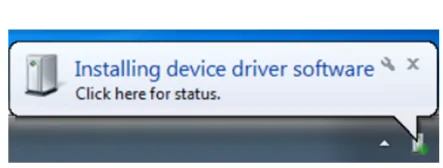
Figure 2‑1 Windows installing the drivers for the Base
2.2. Checking the drivers
Open the Device Manager: press Windows key + R, type
devmgmt.mscand click OK.Expand Universal Serial Bus controllers. A Shimmer Dock adds two USB Serial Converter entries; a Base6 or Base15 adds four.
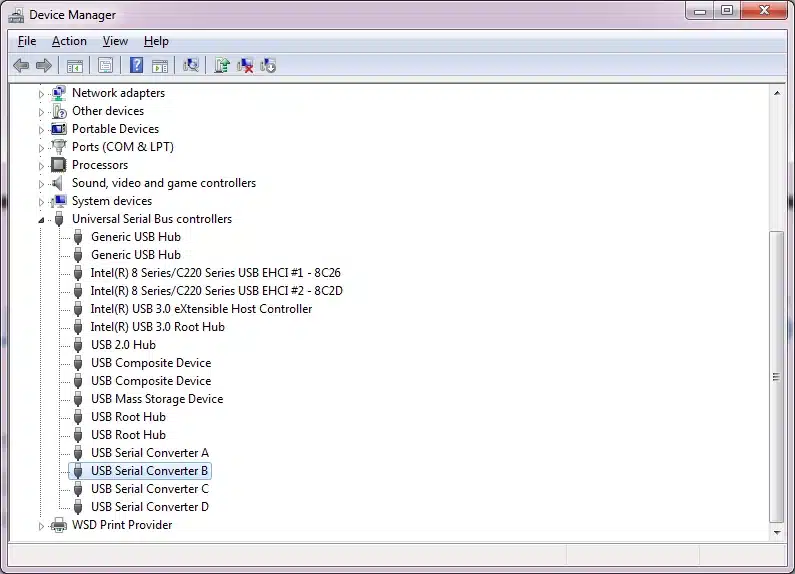
Figure 2‑2 USB Serial Converters in the Device Manager
For each USB Serial Converter, right-click it and choose Properties:
- on the Driver tab, check that the FTDI driver is version 2.12.0.0 or later;
- on the Advanced tab, check that Load VCP is ticked.
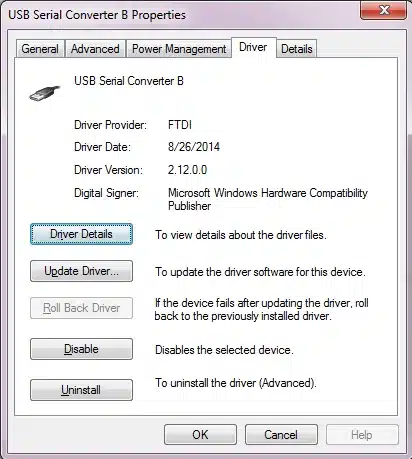
Figure 2‑3 The FTDI driver version, on the Driver tab
If every converter has the right driver, go on to Section 2.4. If not, install the driver by hand first (Section 2.3).
2.3. Installing the FTDI driver by hand
- Download the latest Windows setup executable of the VCP driver from FTDI: https://ftdichip.com/drivers/vcp-drivers/.
- Right-click the downloaded file and choose Run as administrator. Click Yes if Windows asks for permission, and Run if a security warning appears.
- Click Extract, then Next; accept the licence and click Next.
- When the drivers have installed, click Finish, then Restart Now.
- Check the drivers again (Section 2.2) before going on.
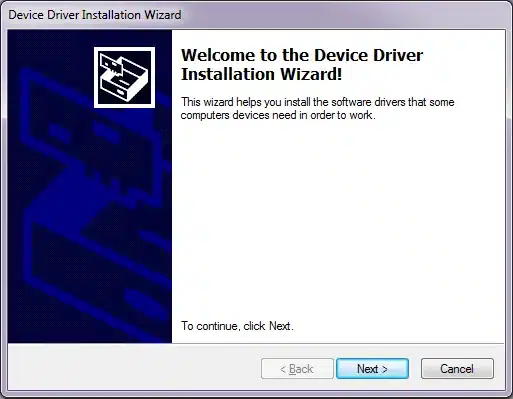
Figure 2‑4 The FTDI driver installer
2.4. Installing Consensys
- Extract the zip file you downloaded.
- Double-click
setup.exeand follow the installer’s instructions. - When it has finished, start Consensys from its desktop icon.
3. Licensing ConsensysPRO
ConsensysPRO needs a licence. Skip this chapter if you use only ConsensysBASIC, which needs none.
3.1. Licence types
- Subscription: ConsensysPRO for a set period, renewed every year (365 days).
- Floating: a number of activations that can be in use at the same time. Consensys counts the running copies, and no more can run at once than the licences allow.
- Trial: ConsensysPRO free for 5 days. After that, buy a licence or carry on with ConsensysBASIC.
Licences can be bought from the Shimmer website.
3.2. Activating a licence
Activate ConsensysPRO when Consensys starts, or later from Help → Upgrade to PRO.
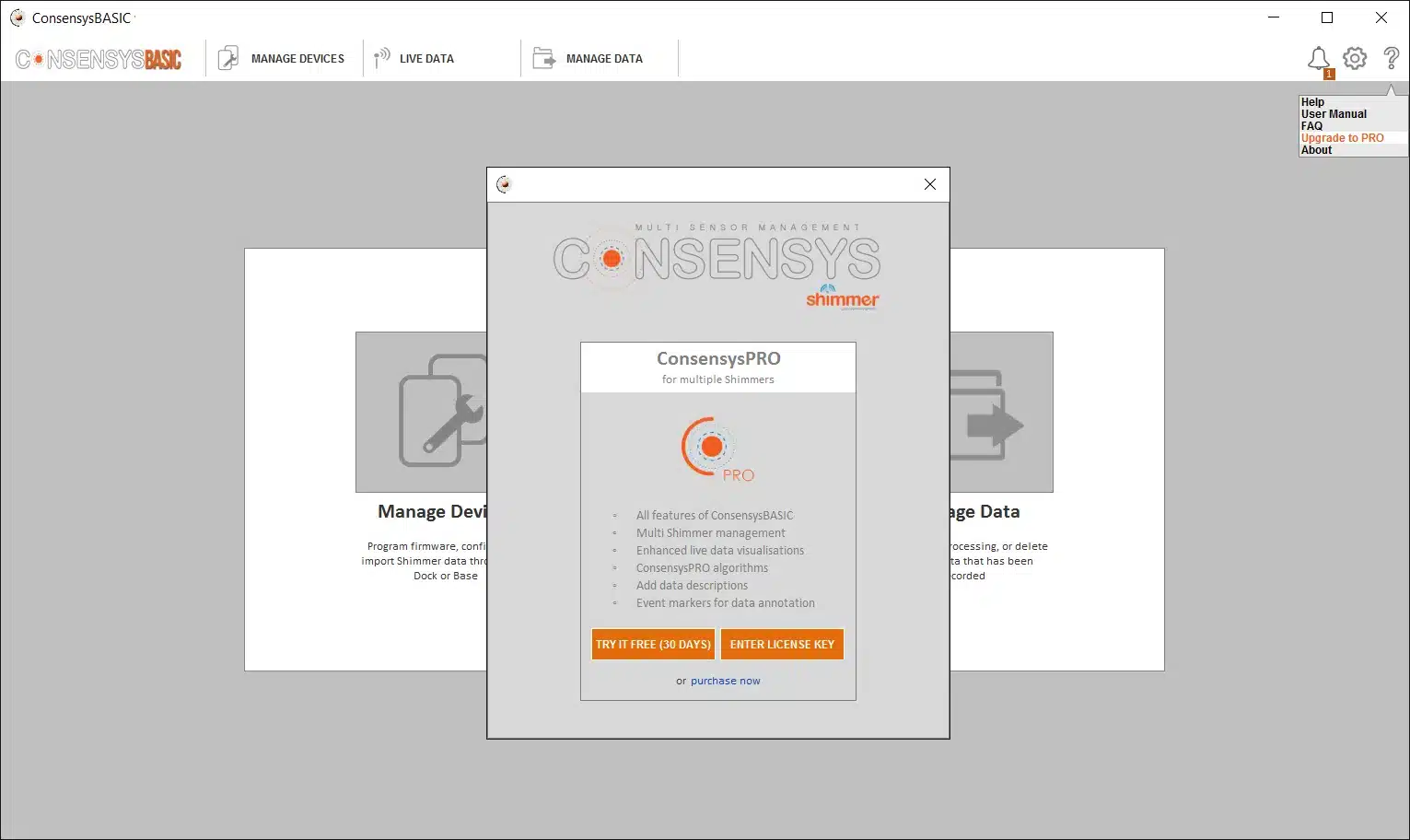
Figure 3‑1 Activating ConsensysPRO from Help → Upgrade to PRO
3.3. Managing licences
Help → Manage Licenses shows the licensee and licence details. Deactivating the licence on a computer frees that activation for another one: in the Licensee Activations panel on the right, click the X beside the PC to deactivate. You can deactivate only the computer you are working on.
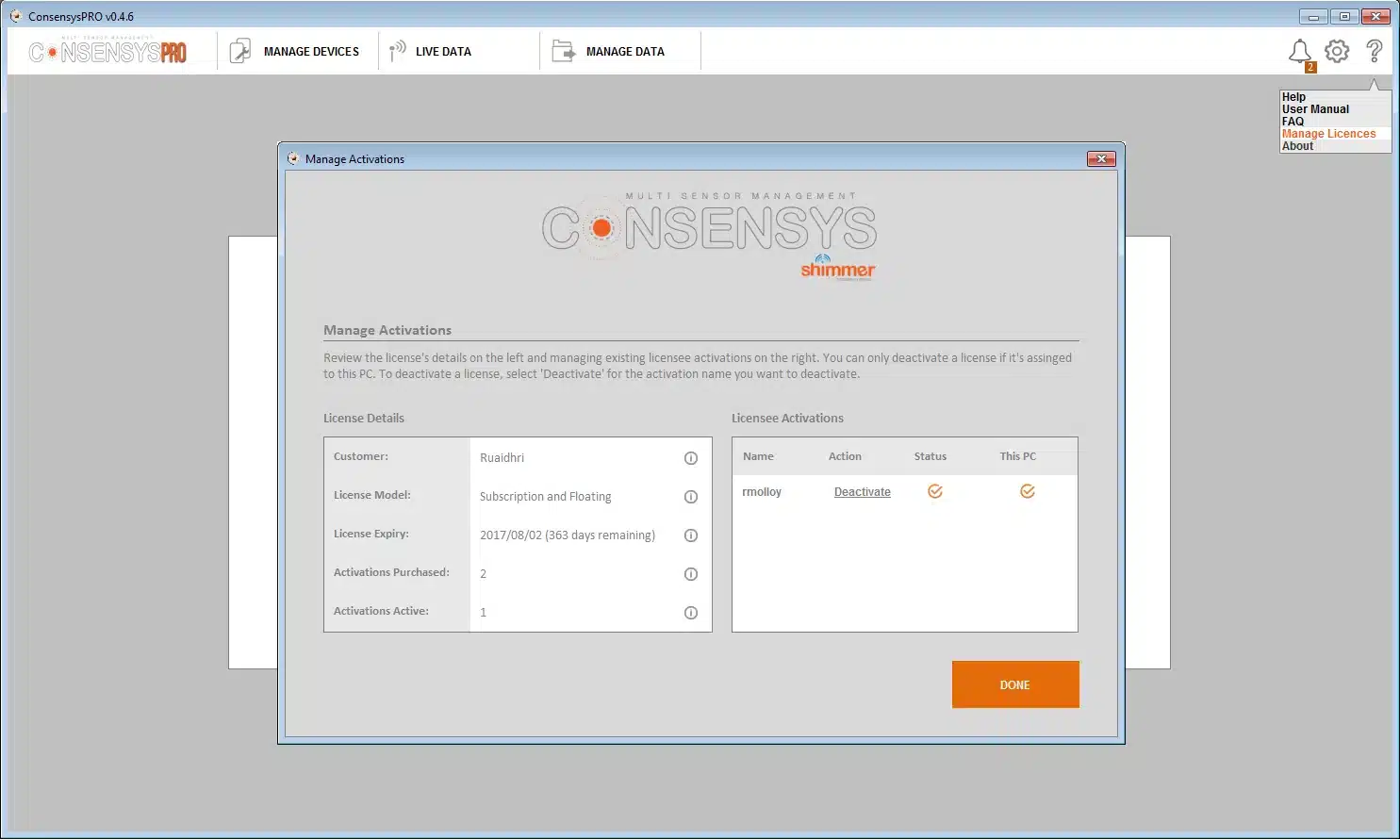
Figure 3‑2 Help → Manage Licenses
4. The Consensys Workspace
The first time a new version of Consensys runs, it asks where to create its workspace, the folder that holds its files. Click OK to use the recommended default.
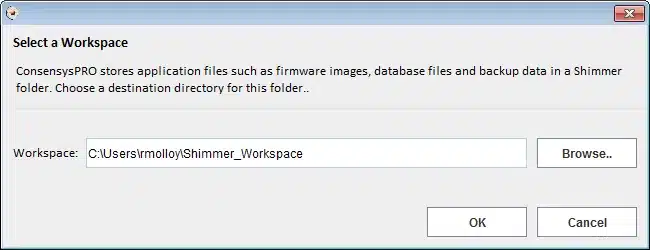
Figure 4‑1 Creating the workspace
The workspace holds:
| Folder | Contents |
|---|---|
| App Logs | Debug logs. Include them with a support request about the Dock, Base or software |
| Backup | A copy of everything imported from Shimmer SD cards |
| Database | The recordings: data imported from SD cards and recorded over Bluetooth, one database per trial |
| Documentation | This guide and the FAQ, also opened from the Help menu |
| Firmware | Shimmer3 and Shimmer3R firmware, for programming Shimmers |
| Default Trial | Created when a Verisense or wrist sensor (experimental) is synced: its binary and parsed (e.g. CSV) files |
Table 4‑1 Workspace folders
To open the workspace folder, choose Application Settings and click Open.
5. Programming Firmware
Shimmers must run LogAndStream firmware to work with Consensys. To program it:
Start Consensys and click MANAGE DEVICES.
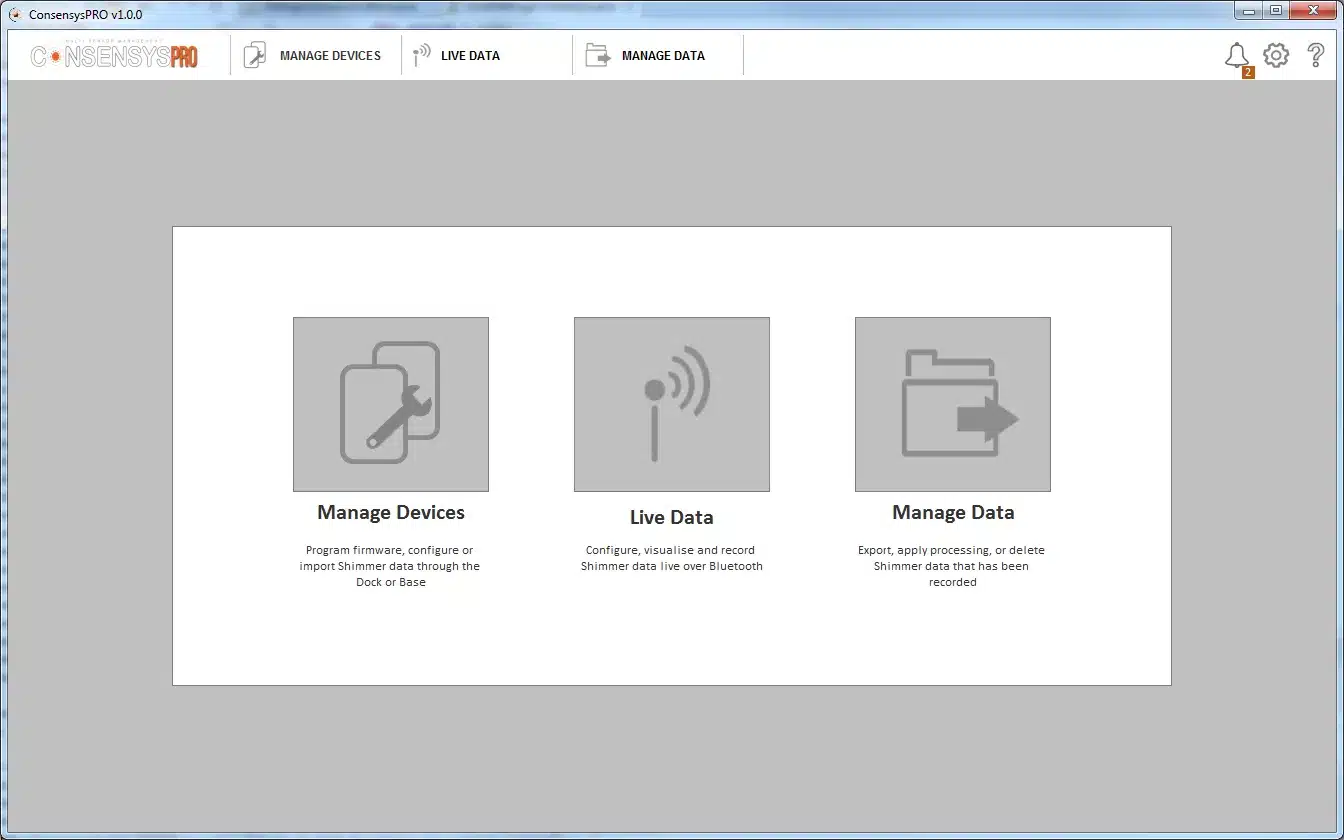
Figure 5‑1 MANAGE DEVICES
Switch the Shimmers on and place them in the Base or Dock.
Select the Shimmers, by clicking them in the picture of the Base or in the device list, and click FIRMWARE.
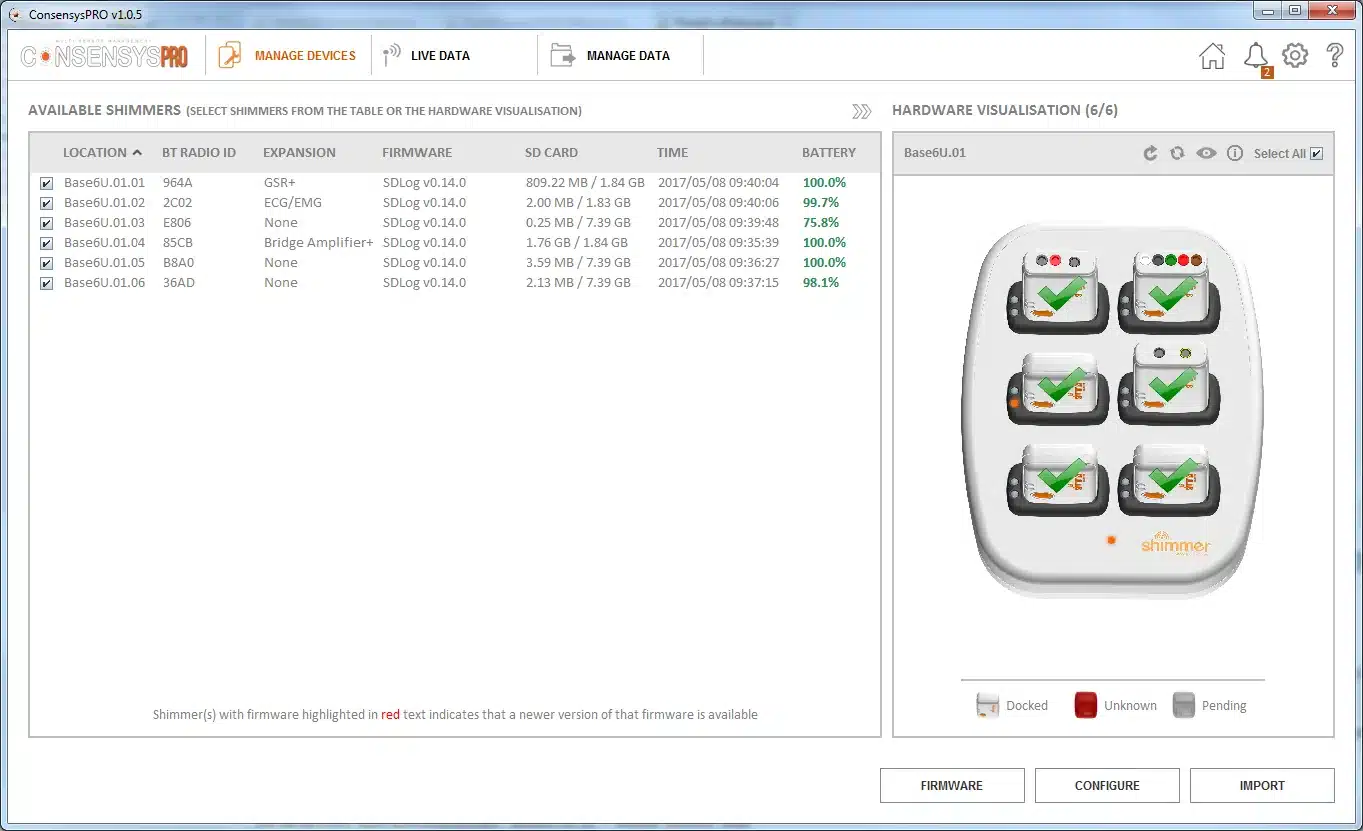
Figure 5‑2 Selecting Shimmers in MANAGE DEVICES
Choose the firmware file and click PROGRAM. Click DONE when it has finished.
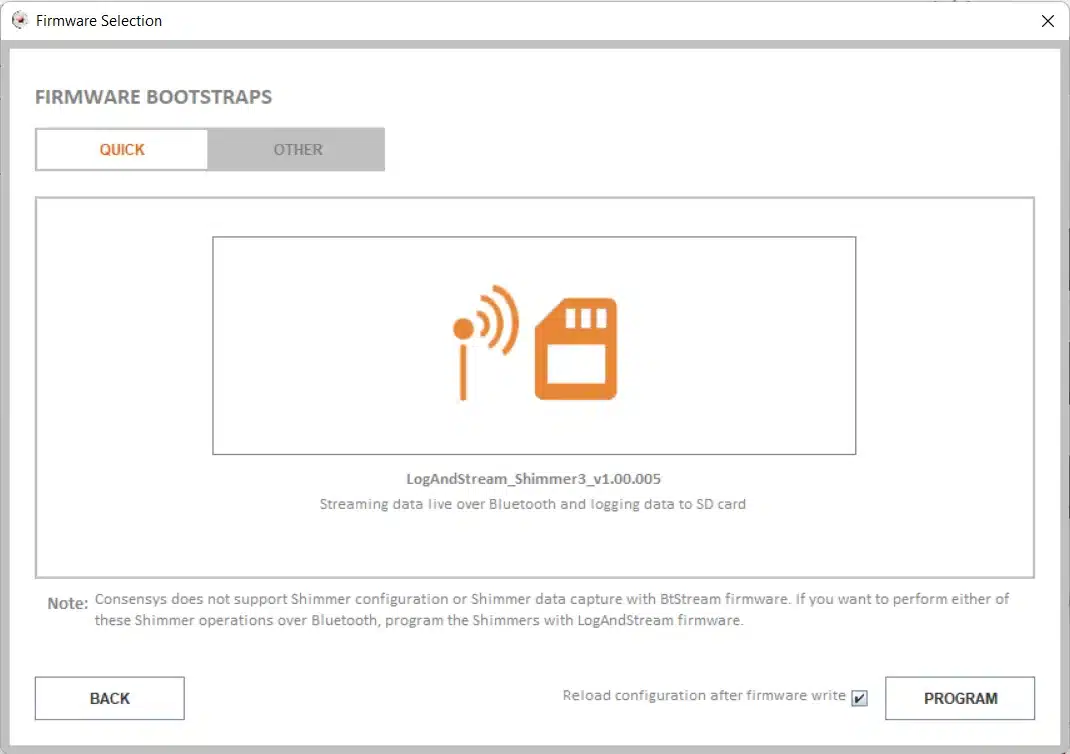
Figure 5‑3 Choosing the firmware to program
Shimmer3R: a Shimmer3R can also be programmed over USB-C (Section 6.4).
5.1. Reload configuration after firmware write
The firmware dialog’s Reload configuration after firmware write option decides what happens to the Shimmer’s configuration and calibration:
- Ticked (the default): after programming, Consensys writes the Shimmer’s previous configuration back, calibration included. When the Shimmer is next undocked, it reloads its calibration from the calibration file on its SD card. Nothing needs to be set up again.
- Unticked: Consensys resets the configuration and the calibration to their defaults, on the Shimmer and on its SD card. Configure the Shimmer again, and calibrate it again (Calibrating the Sensors in the IMU User Guide).
Untick it only to return a Shimmer to its factory settings, for example to recover one that misbehaves (Section 12.2). The data files on the SD card are not touched either way.
6. Logging to the SD Card
A Shimmer can log its data to its SD card, with no PC nearby; afterwards Consensys imports the data from the card. This chapter uses the SD Log with Inter-device Sync recording option, which also keeps several Shimmers in step with each other (see Synchronised logging in the Shimmer3/3R User Manual).
6.1. Configuring the trial
In MANAGE DEVICES, select one or more Shimmers with the same firmware (type and version), and click CONFIGURE. (ConsensysBASIC: one Shimmer.)
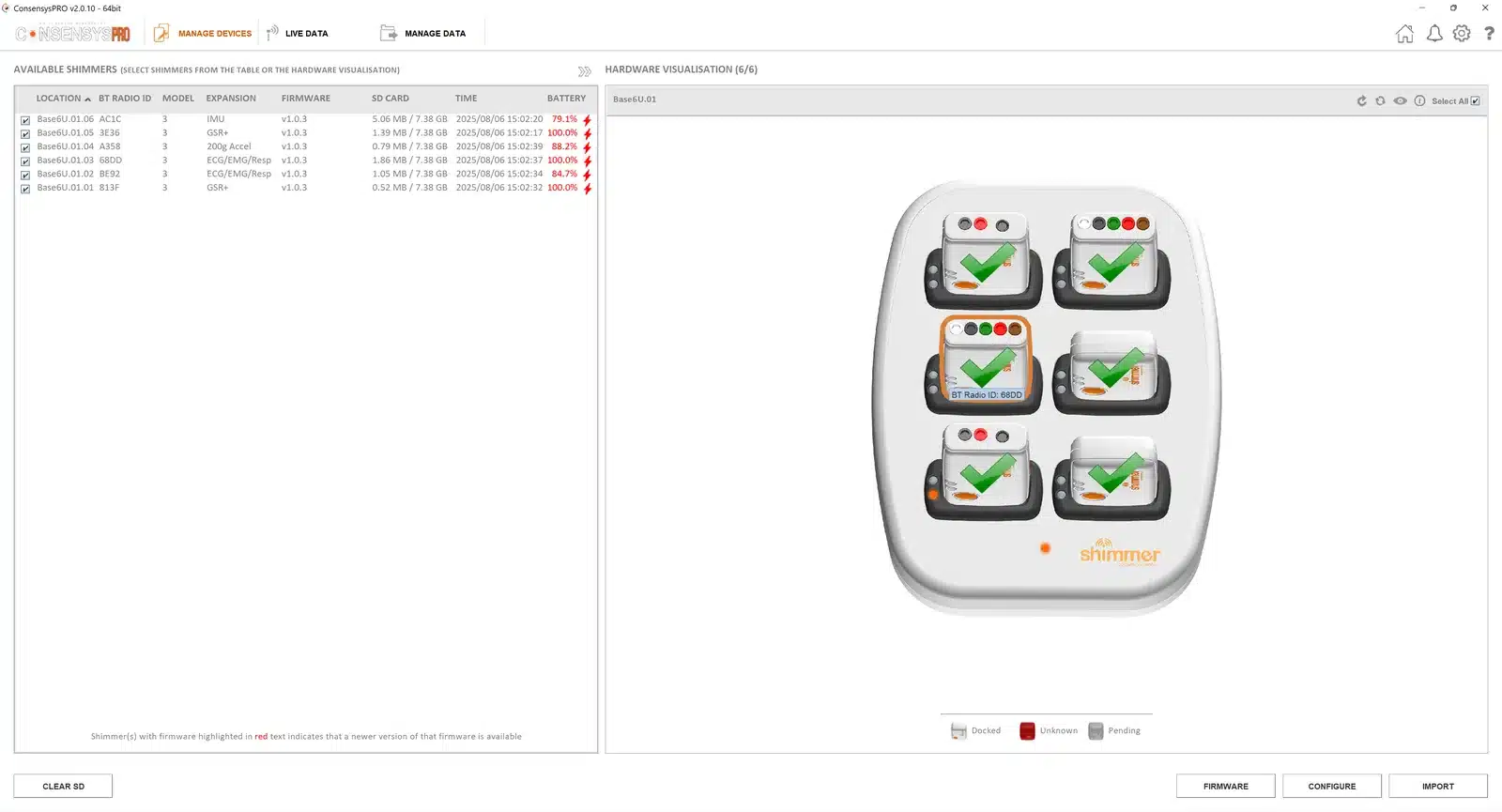
Figure 6‑1 Selecting Shimmers to configure
Trial details: choose a Trial Name, select SD Log with Inter-device Sync, and set Auto Stop in minutes, or 0 for no set length.
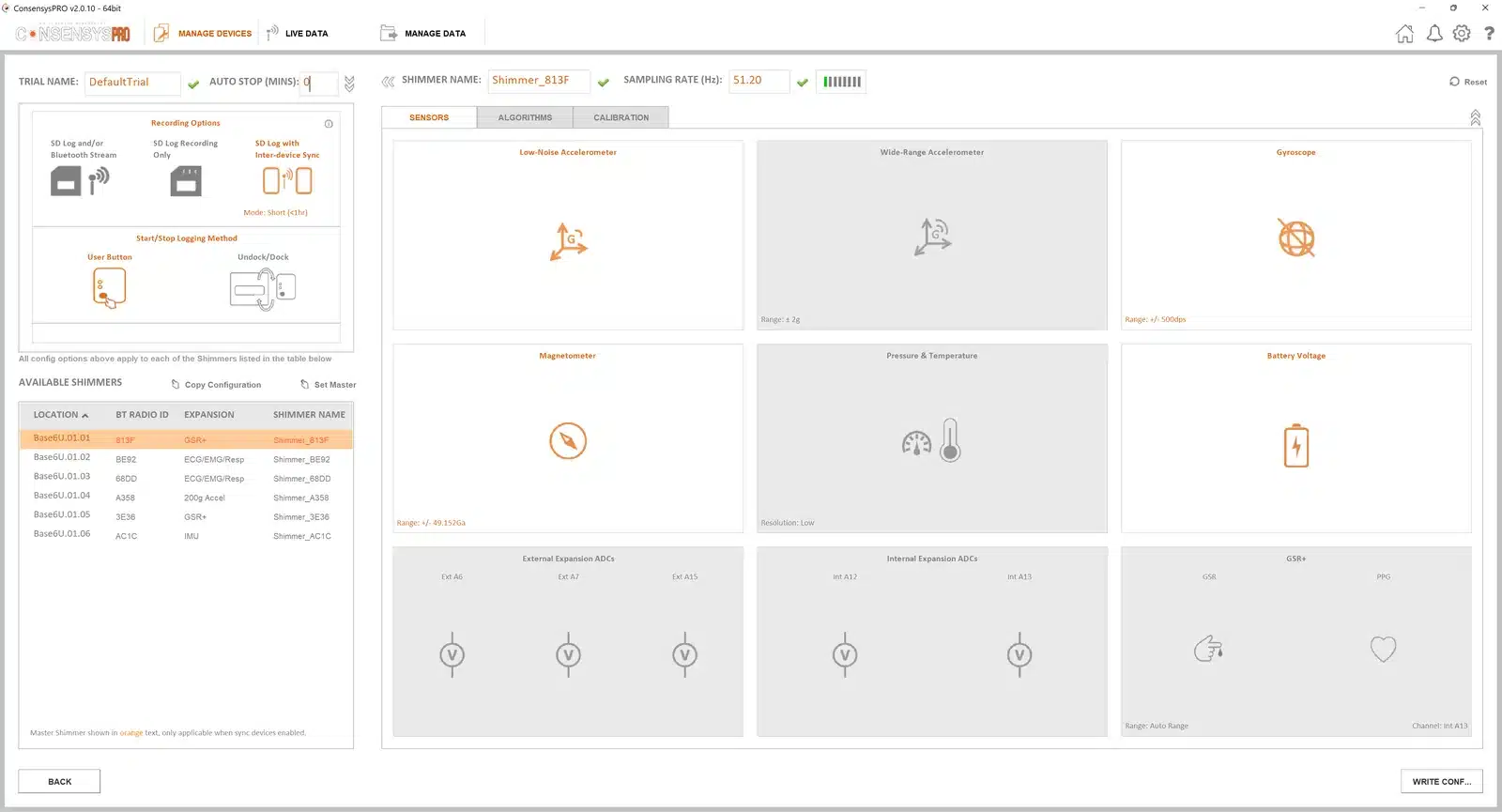
Figure 6‑2 Trial details
Starting and stopping: choose whether logging starts and stops with the User Button (used in this guide) or by undocking and docking. Log for at least a minute, so that a data file is written.
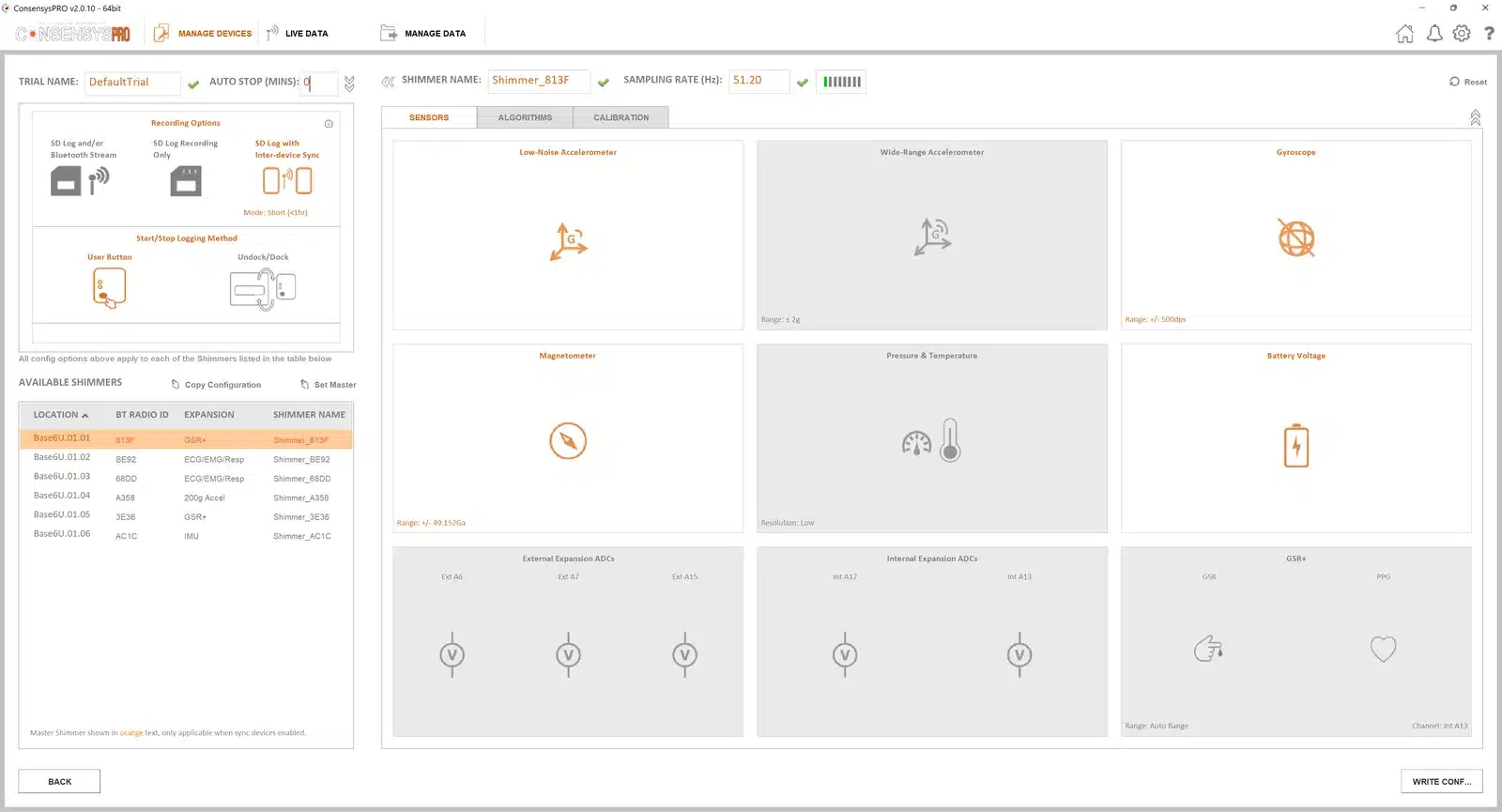
Figure 6‑3 How logging starts and stops
Each Shimmer: choose its Shimmer Name and Sampling Rate, and click the sensor tiles to enable and set up the sensors.
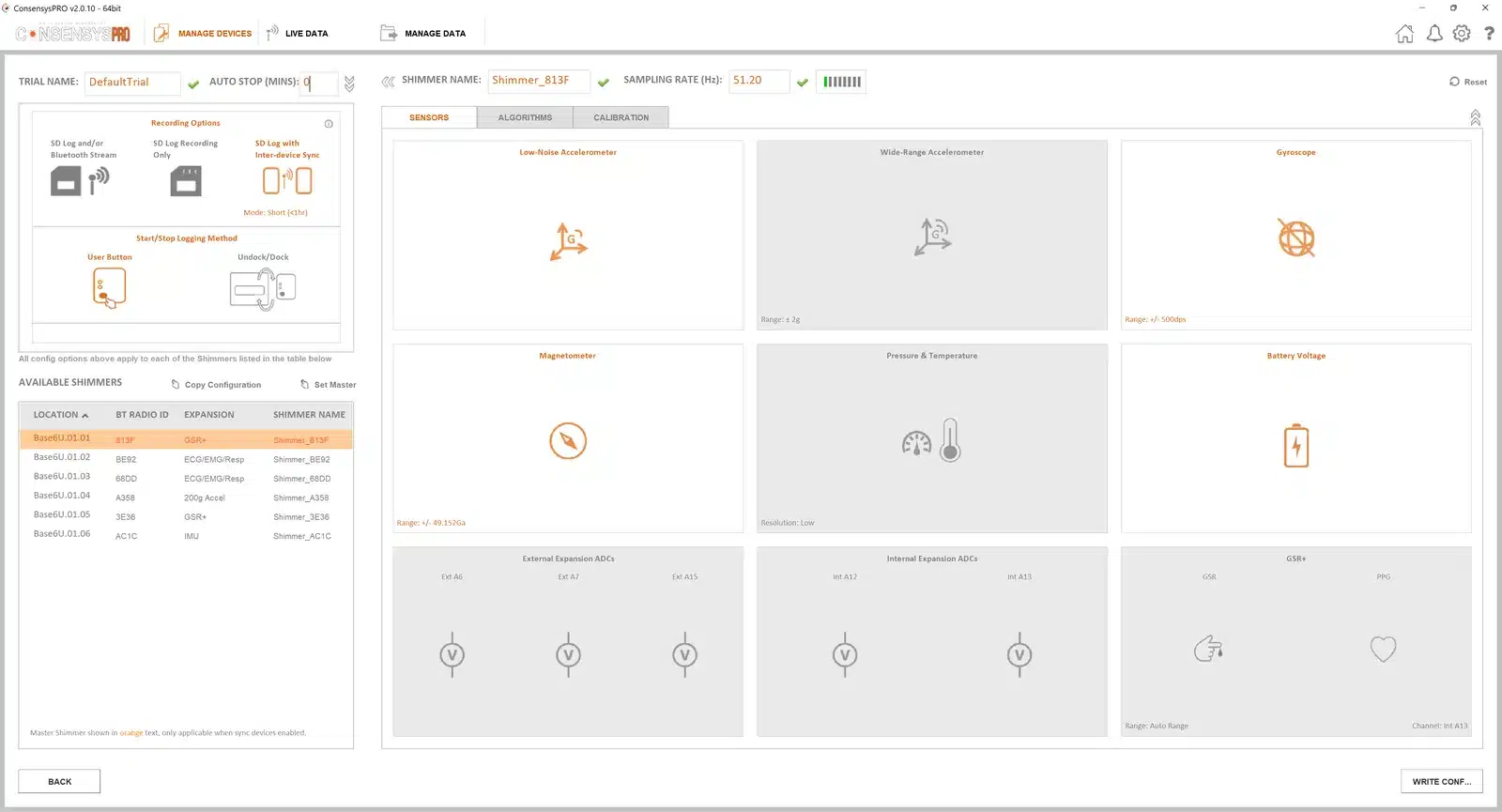
Figure 6‑4 Shimmer name, sampling rate and sensors
Algorithms (ConsensysPRO): enable the algorithms for each Shimmer’s hardware, such as 9DoF to Quaternion on an IMU or ECG to Heart Rate on an ECG unit.
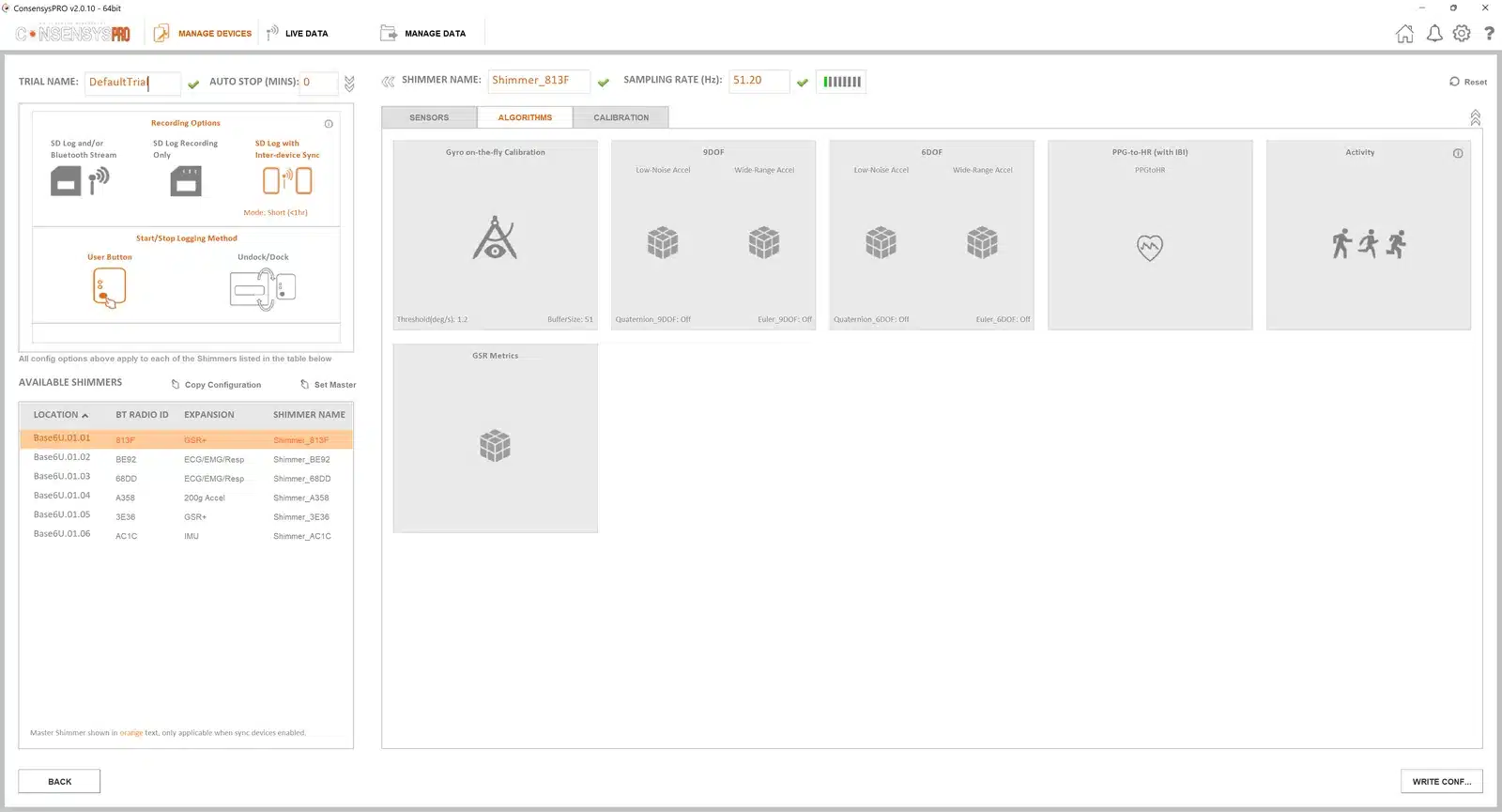
Figure 6‑5 Algorithms
Calibration: check each Shimmer’s IMU calibration on the Calibration tab. The reset buttons return all the IMU sensors, or one of them, to the factory defaults. A Shimmer shown with a red warning symbol has an invalid IMU calibration: reset it to the defaults, or calibrate it (Chapter 8).
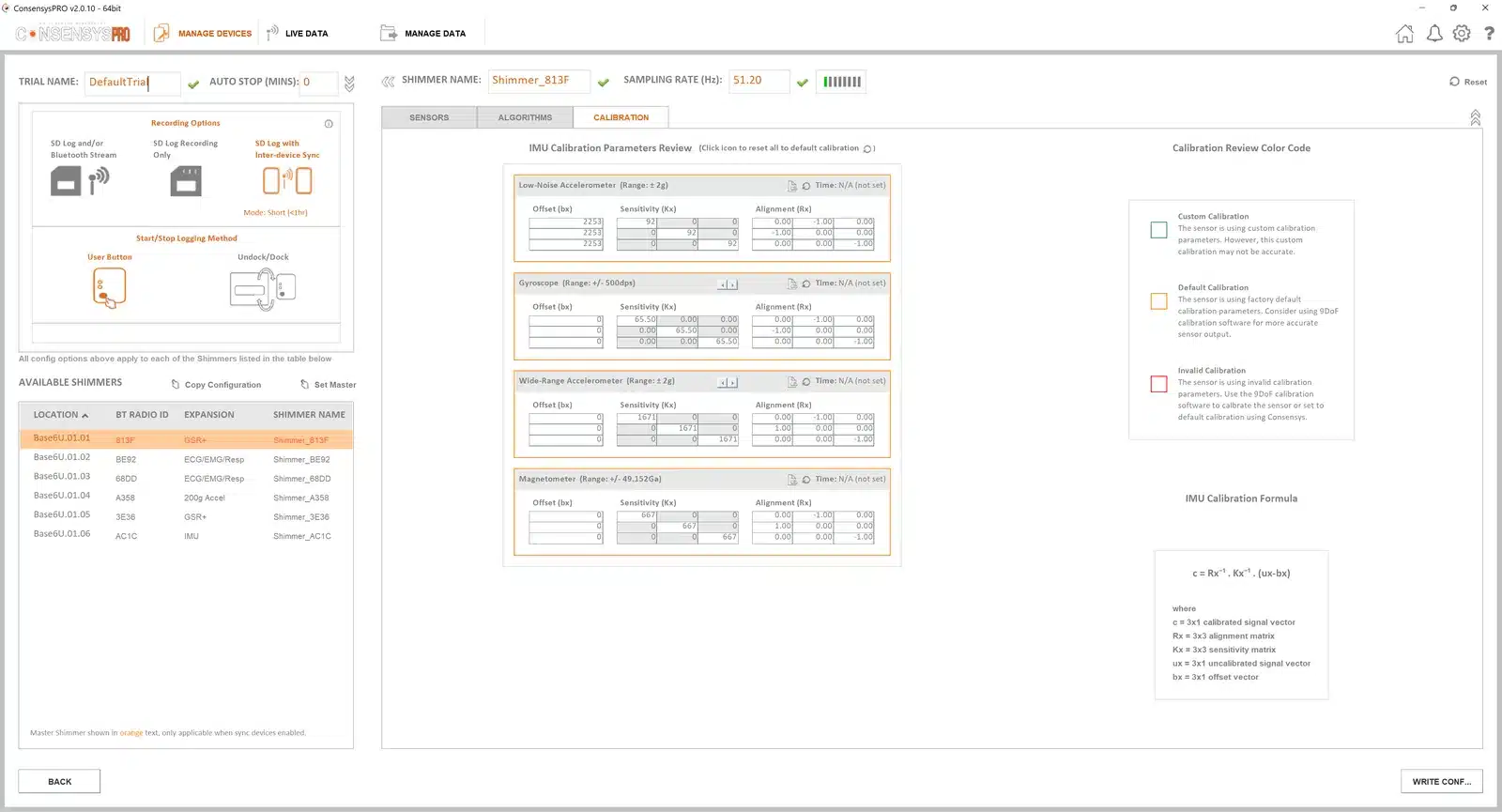
Figure 6‑6 Reviewing calibration
Click WRITE CONFIG to save the configuration (trial, Shimmer, sensor, algorithm and calibration settings) to every Shimmer. Wait until it has been written, then click NEXT.
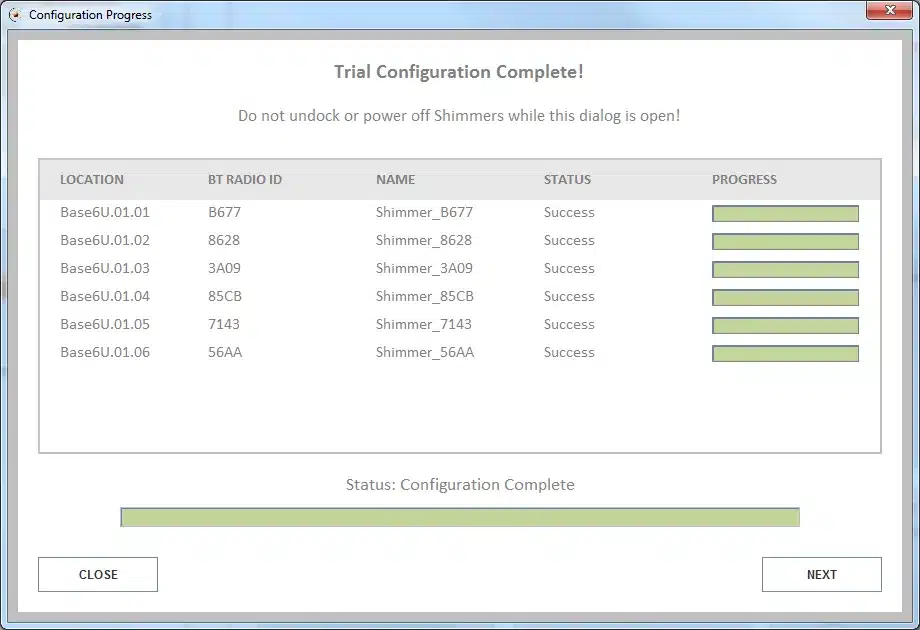
Figure 6‑7 Writing the configuration
6.2. Logging
- Take the Shimmers out of the Base or Dock. Do not switch them off.
- Press the orange user button on each Shimmer to start logging. The green LED flashes on and off once a second while it logs.
- Press the button again to stop. The upper LED then blips briefly once every two seconds: blue, or green if Bluetooth is disabled in the configuration (see LED indicators).
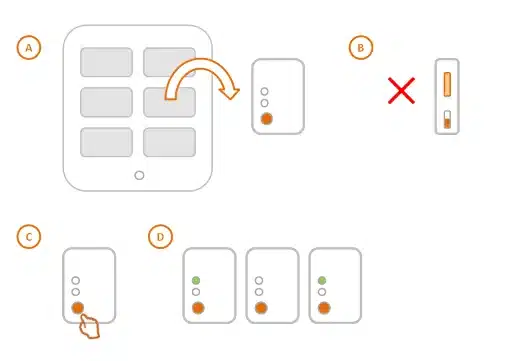
Figure 6‑8 Undock, leave switched on, press the button; the green LED flashes while logging
6.3. Importing the data
Scan the SD cards: put the Shimmers in the Base, select them, and click IMPORT. Click NEXT when scanning has finished.
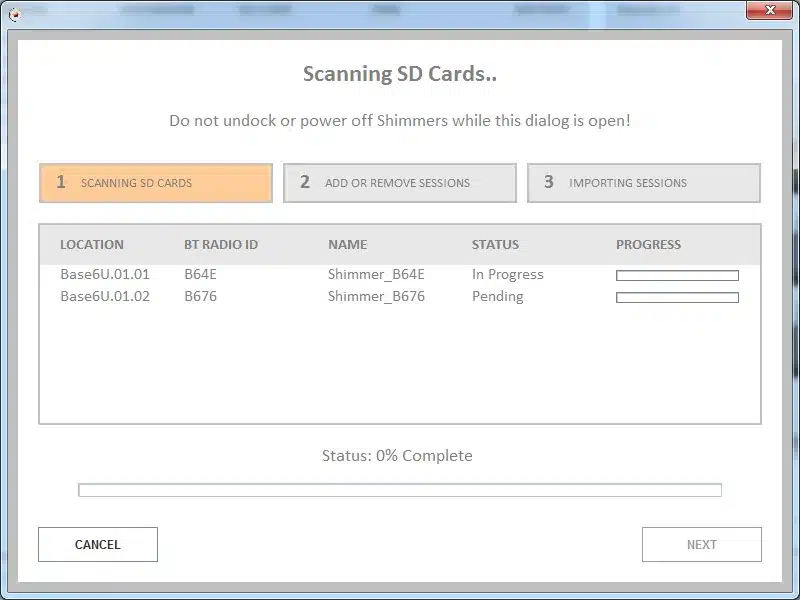
Figure 6‑9 Scanning the SD cards
Choose what to import: select data from one or more Shimmers, and add it as a new session to the list on the right. Each trial’s sessions are numbered: New Session:1, New Session:2 and so on.
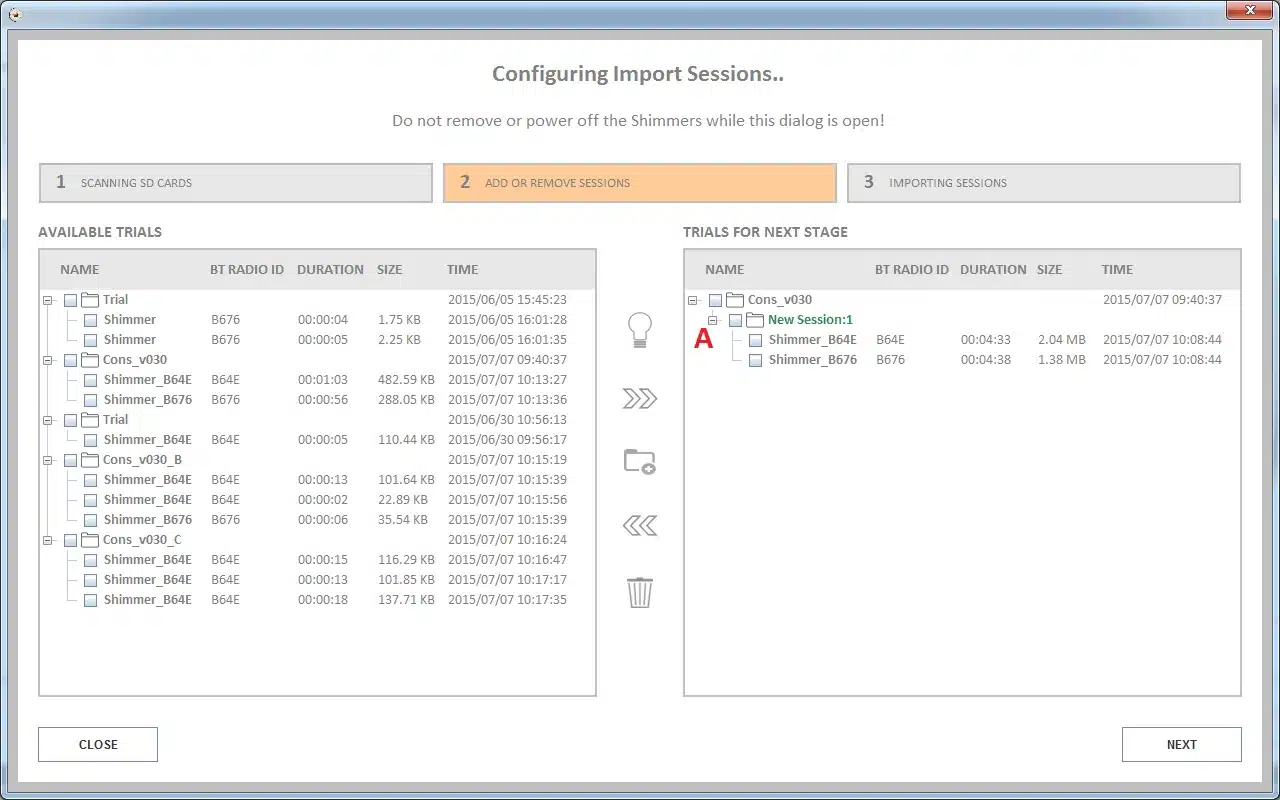
Figure 6‑10 Data added as a new session
Choose what to delete: select the data you do not want to import, and mark it Delete Only. Click NEXT, and YES to confirm.
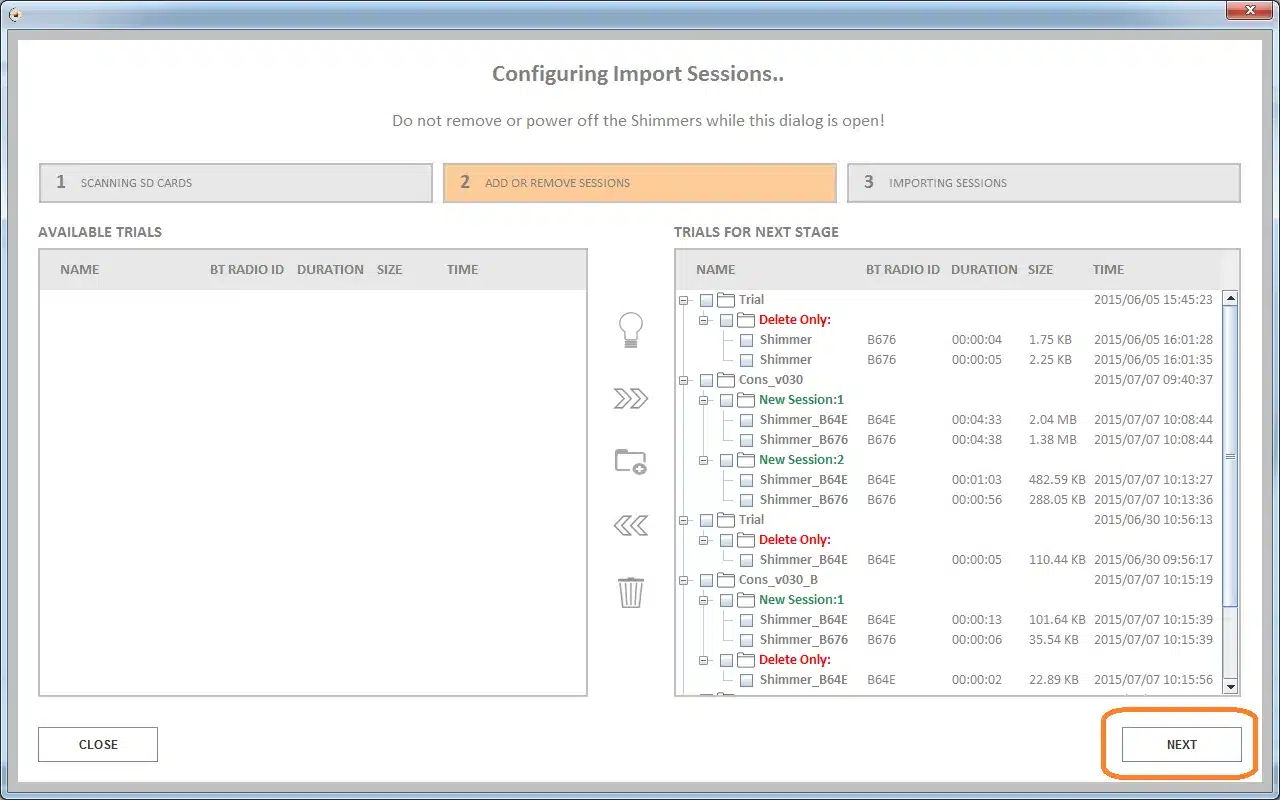
Figure 6‑11 Data marked “Delete Only”
Import: the selected data is imported into the database, and the marked data deleted from the cards. Click DONE to go to MANAGE DATA (Chapter 10).
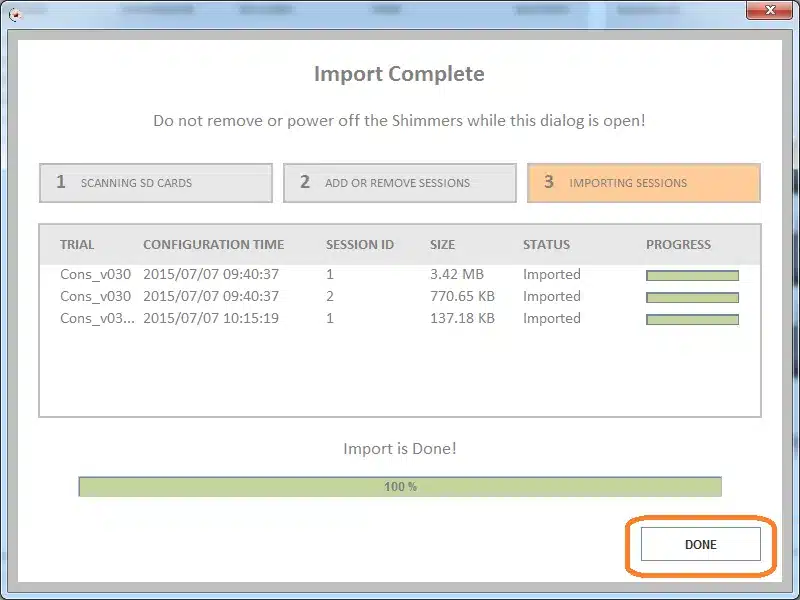
Figure 6‑12 Import complete
6.4. Shimmer3R over USB-C
A Shimmer3R with LogAndStream v1.00.58 or later can be connected to the PC with a USB-C cable instead of a Base or Dock. It then appears in MANAGE DEVICES: click its picture to select it, and you can program its firmware (Chapter 5) and configure and import its logging (this chapter) as you would in a Base.
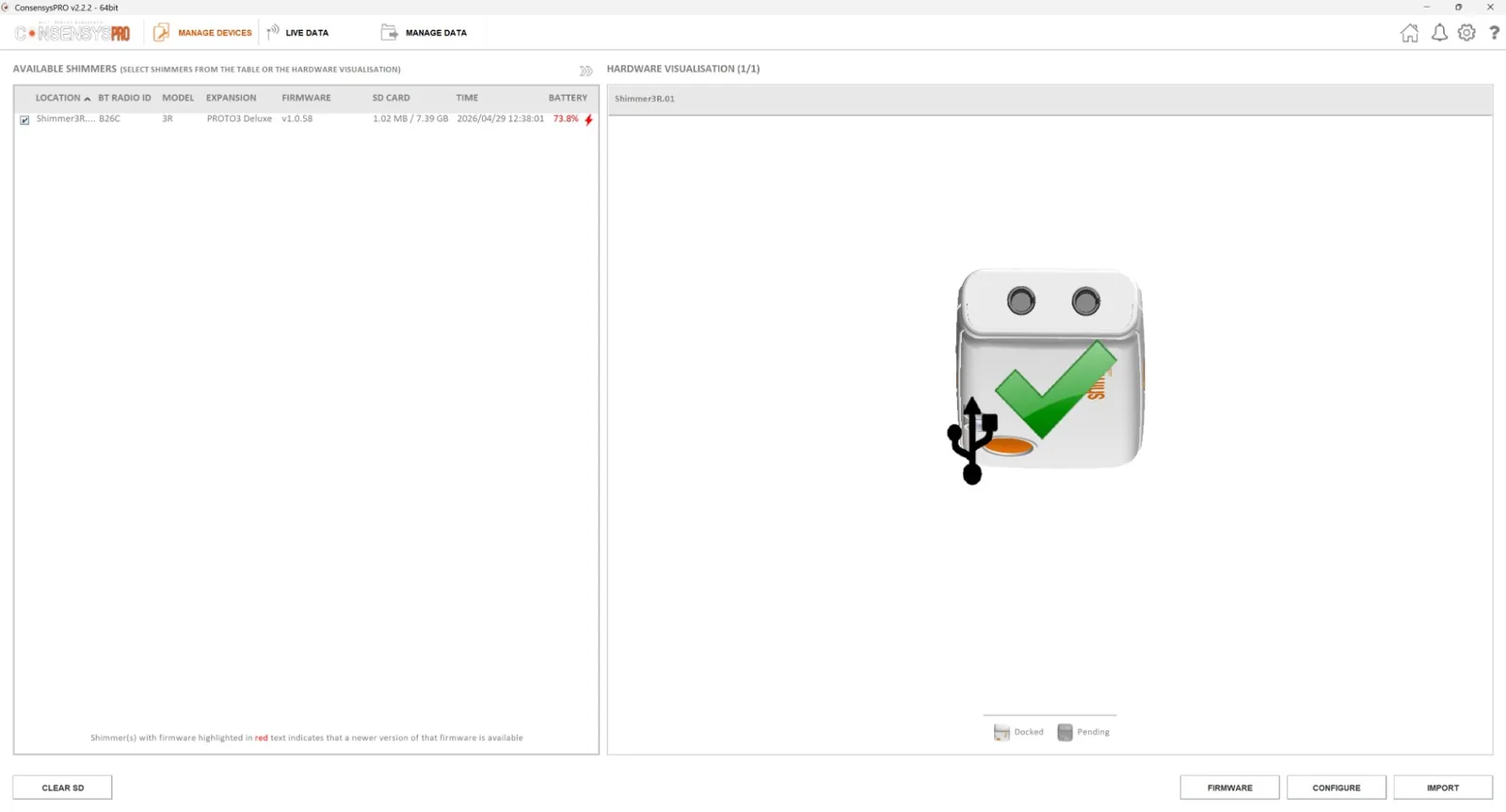
Figure 6‑13 A Shimmer3R connected over USB-C, in MANAGE DEVICES
7. Streaming over Bluetooth
A Shimmer can stream its data to the PC over Bluetooth, where Consensys plots it and can record it. The PC needs Bluetooth.
7.1. Pairing
Pair each Shimmer with Windows once: Settings → Bluetooth & devices → Add device → Bluetooth.
Consensys uses Bluetooth Classic, not Bluetooth Low Energy (BLE). Pair the Classic entry, named Shimmer3-XXXX or Shimmer3R-XXXX-BT, where XXXX is the end of the Shimmer’s Bluetooth address. If Windows asks for a PIN, enter 1234: a Shimmer3 asks for it, and so does a Shimmer3R in SD-sync mode. A Shimmer3R otherwise needs none.
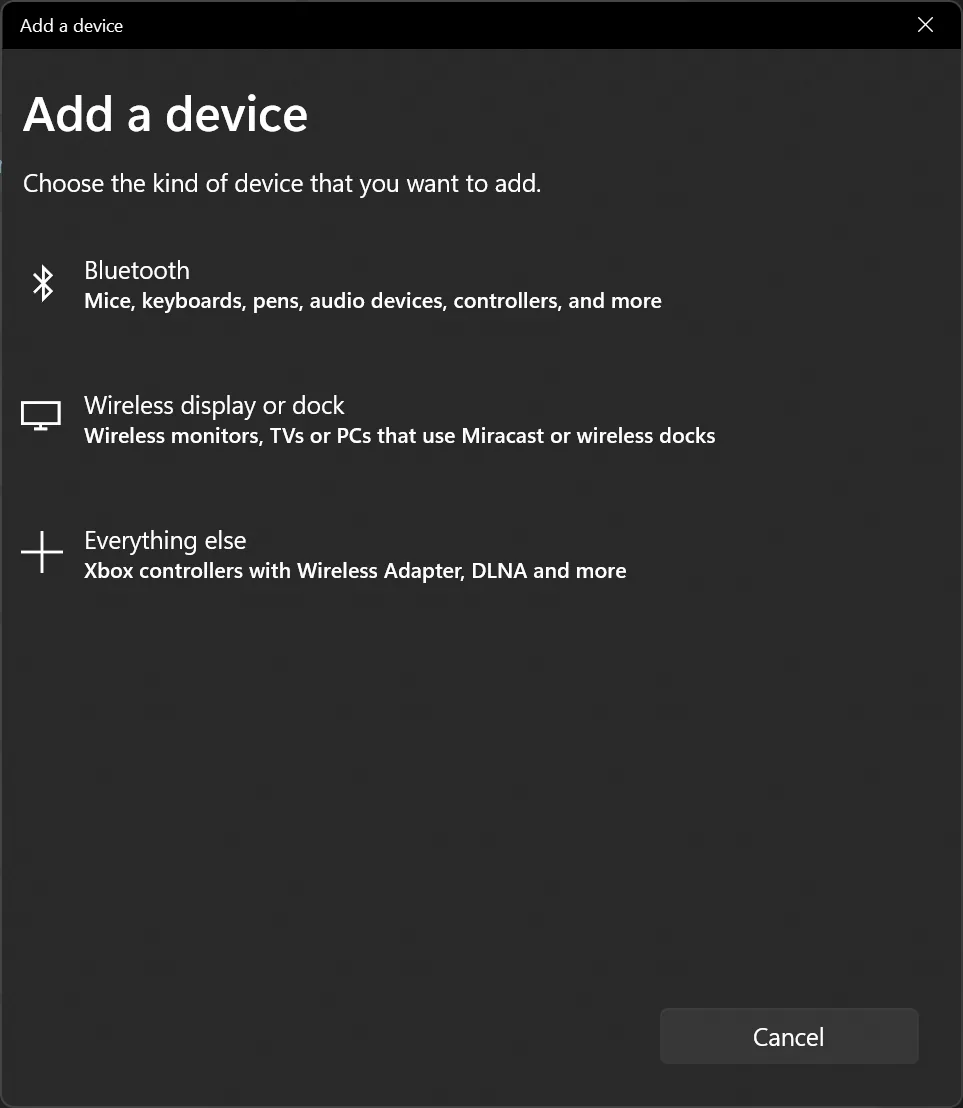
Figure 7‑1 Pairing a Shimmer in Windows
Note: do not pair the BLE entry (S3BLE-XXXX or Shimmer3R-XXXX-BLE). If a Shimmer has been paired both ways, remove both pairings and pair the Classic entry again.
7.2. Connecting
Open LIVE DATA.
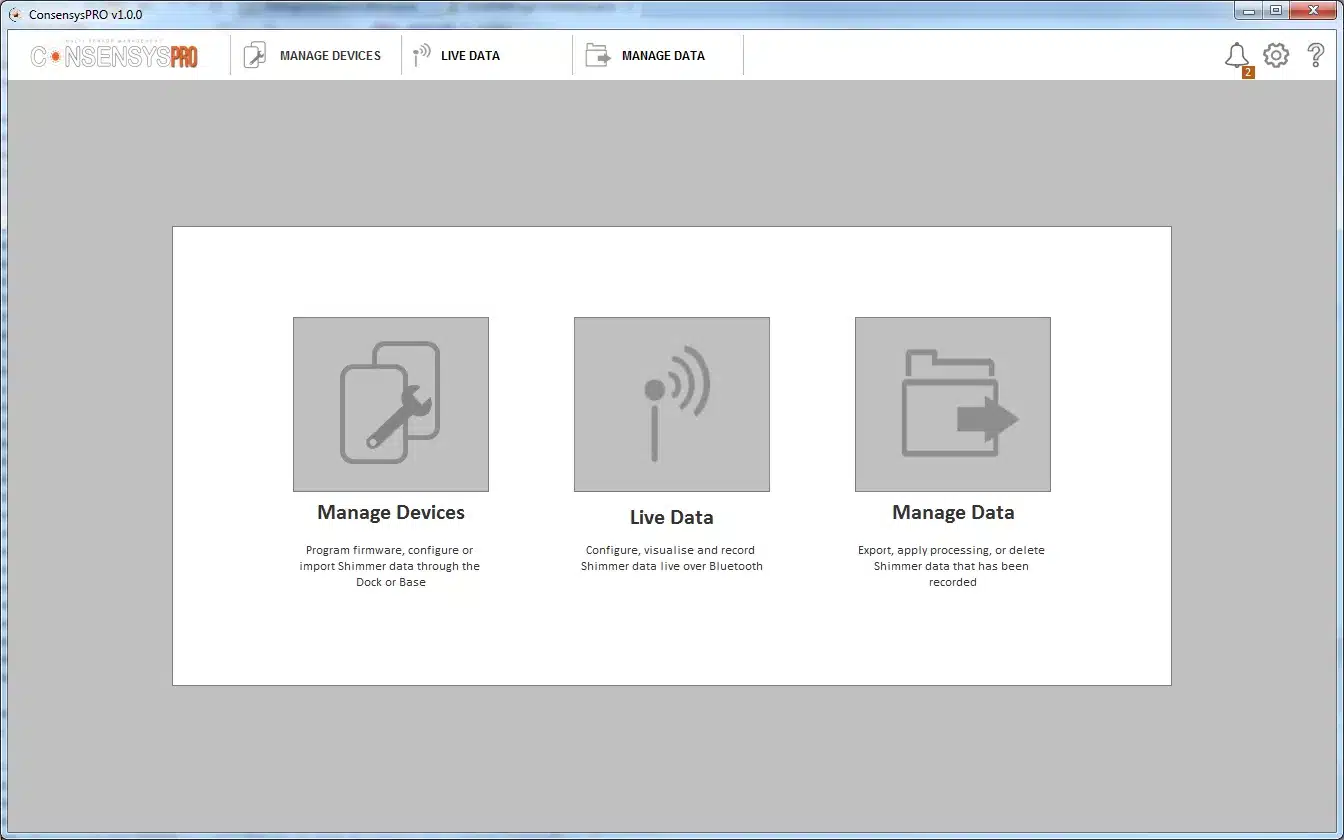
Figure 7‑2 LIVE DATA
Every Shimmer paired with the PC is listed under Available Devices. (ConsensysBASIC: one Shimmer at a time.)
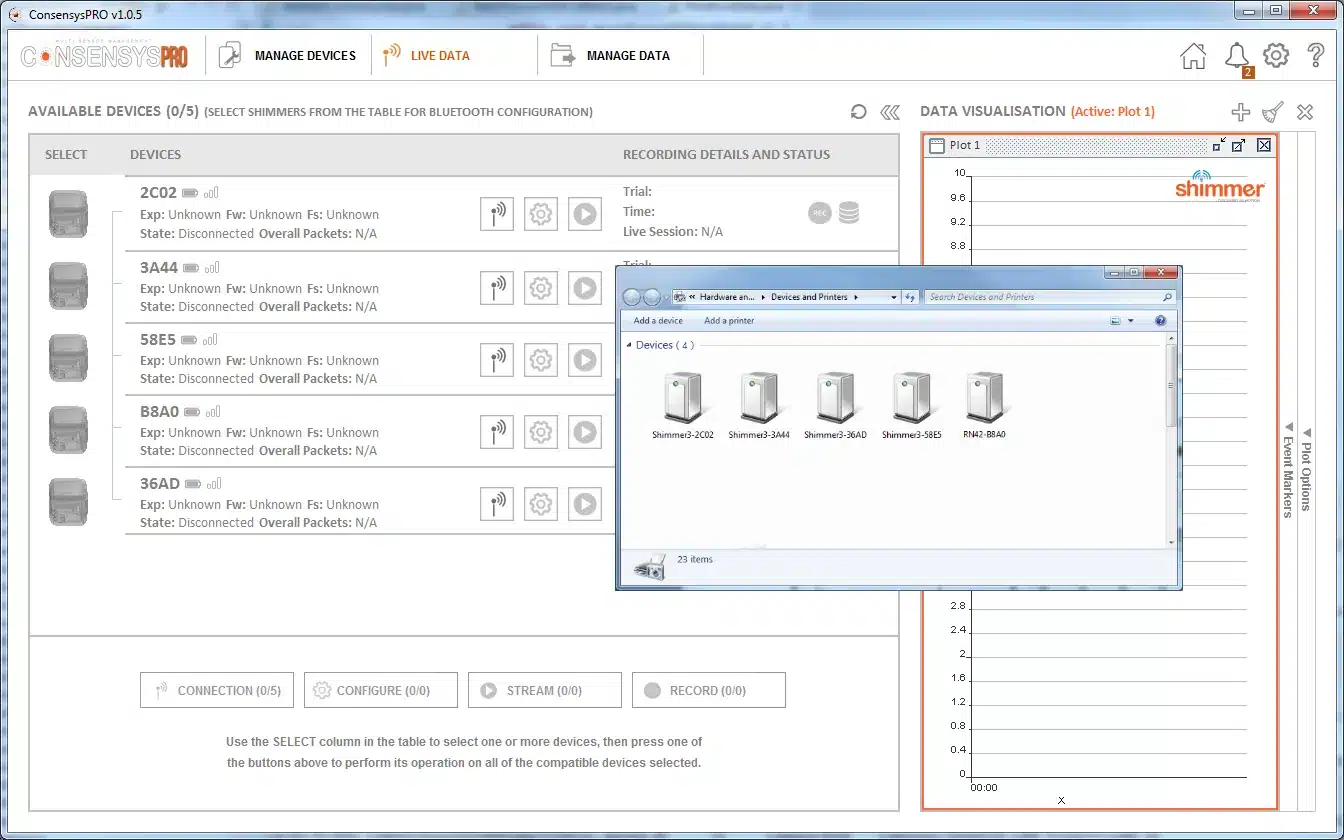
Figure 7‑3 Paired Shimmers in LIVE DATA
Click the connect button beside a Shimmer. Shimmers you have connected before are shown with a picture, which also shows whether they are docked.
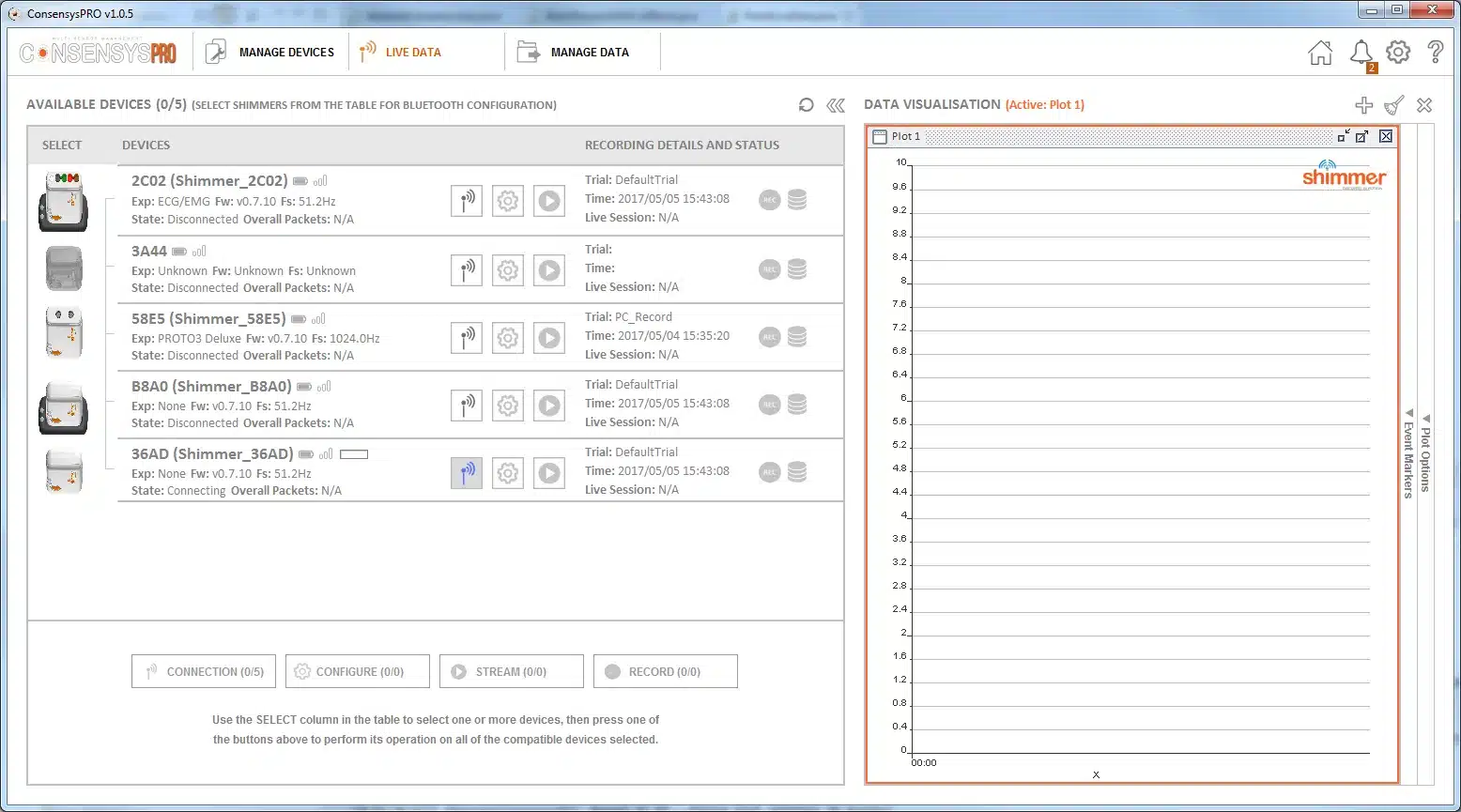
Figure 7‑4 Connecting to a Shimmer
Connect to more Shimmers the same way. Connected Shimmers move to the top of the list.
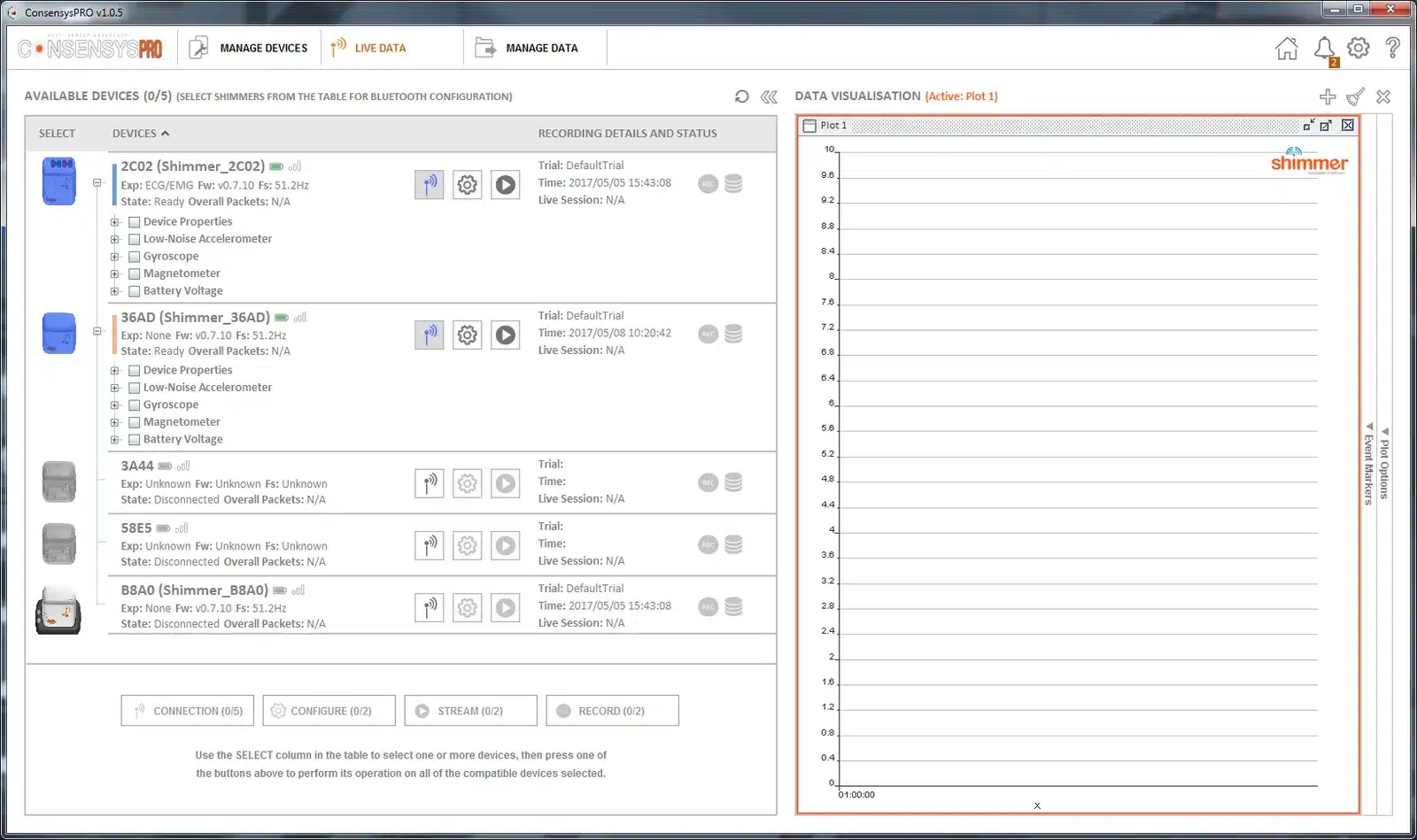
Figure 7‑5 Two connected Shimmers
7.3. Configuring
Select Shimmers: click their icons, or right-click SELECT and choose Select All. Selecting enables the buttons for the group: connect, configure, start streaming and record. The buttons on each row act on that Shimmer only.
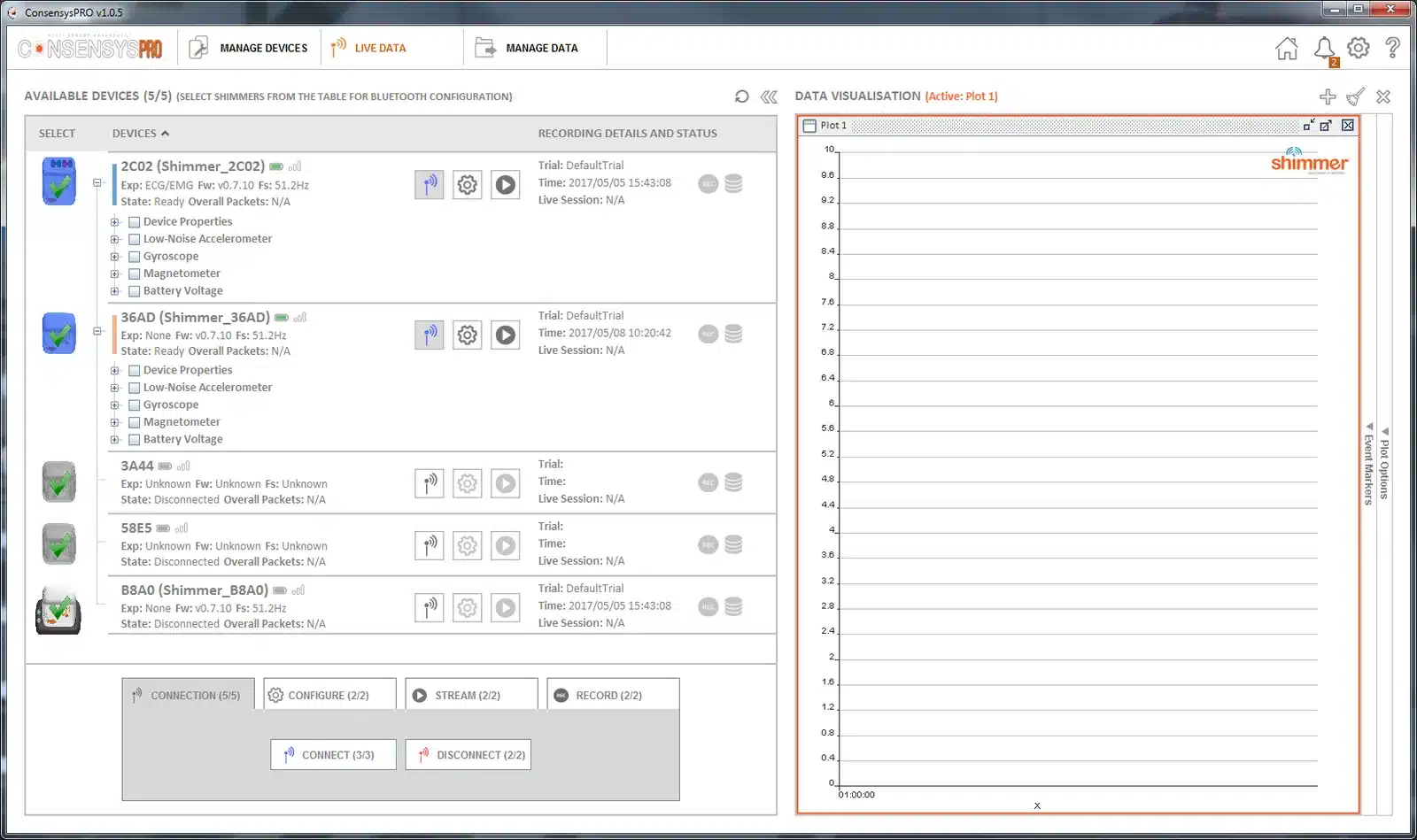
Figure 7‑6 Selected Shimmers and the group buttons
Click Configure. Shimmers configured together belong to the same trial, shown by the same colour; Shimmers in different trials have different colours.
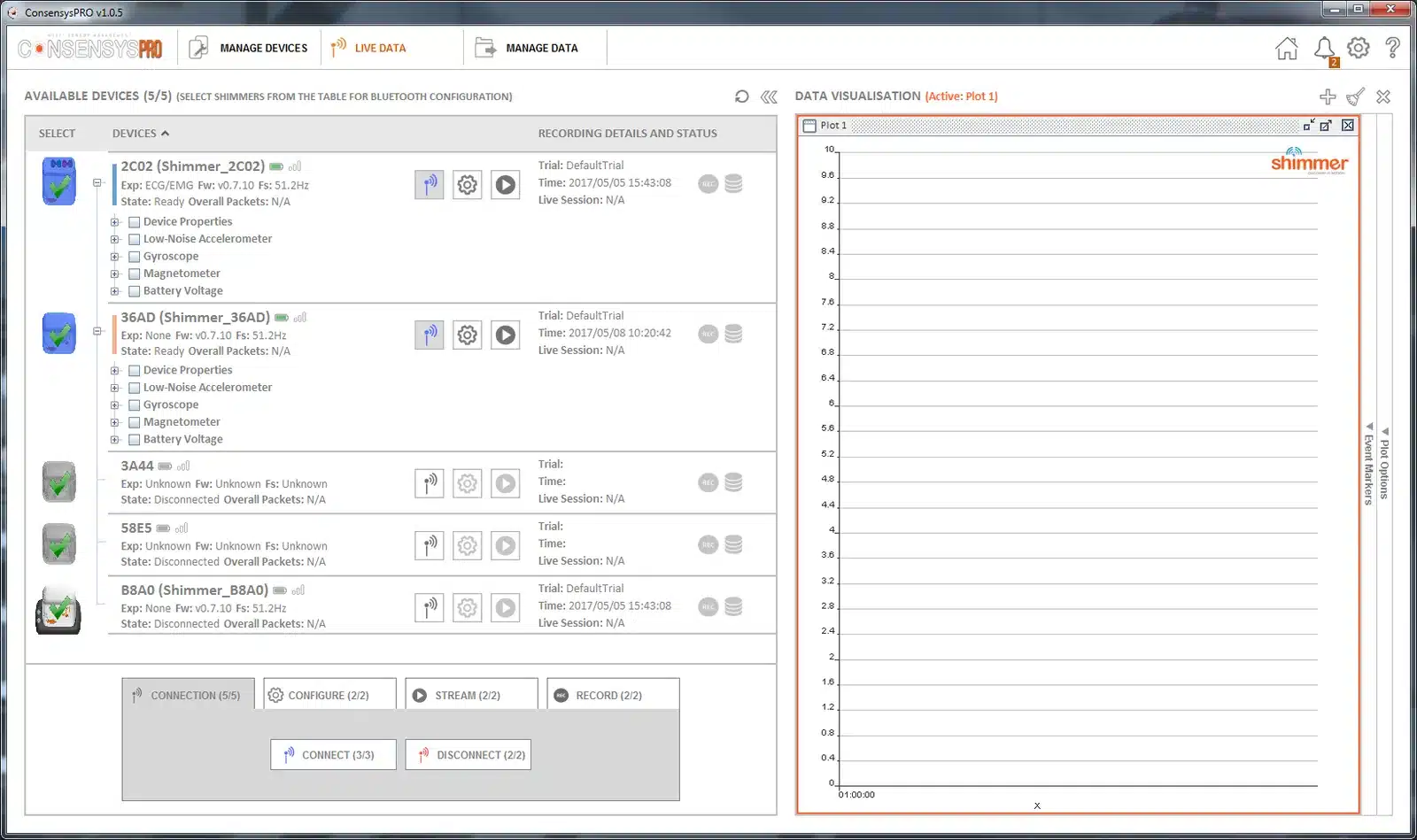
Figure 7‑7 Configuring connected Shimmers
Choose the Trial Name and Auto Stop (0 for no set length). How logging starts and stops cannot be changed over Bluetooth; change it in MANAGE DEVICES if you need to.
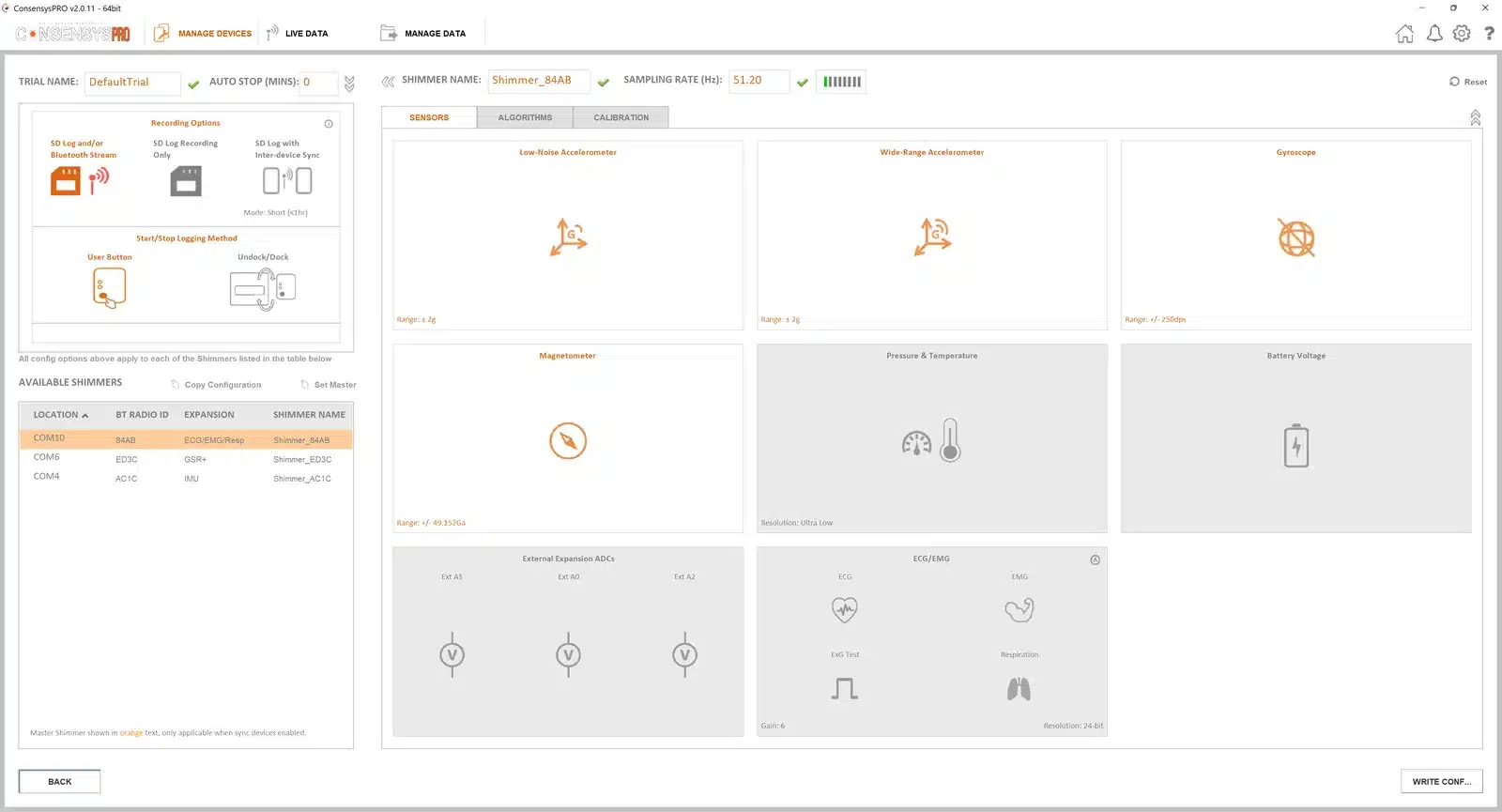
Figure 7‑8 Trial name and auto stop
For each Shimmer, choose its Shimmer Name and Sampling Rate, and click the sensor tiles to enable and set up the sensors. Then click WRITE CONFIG, wait until it has been written, and click NEXT.
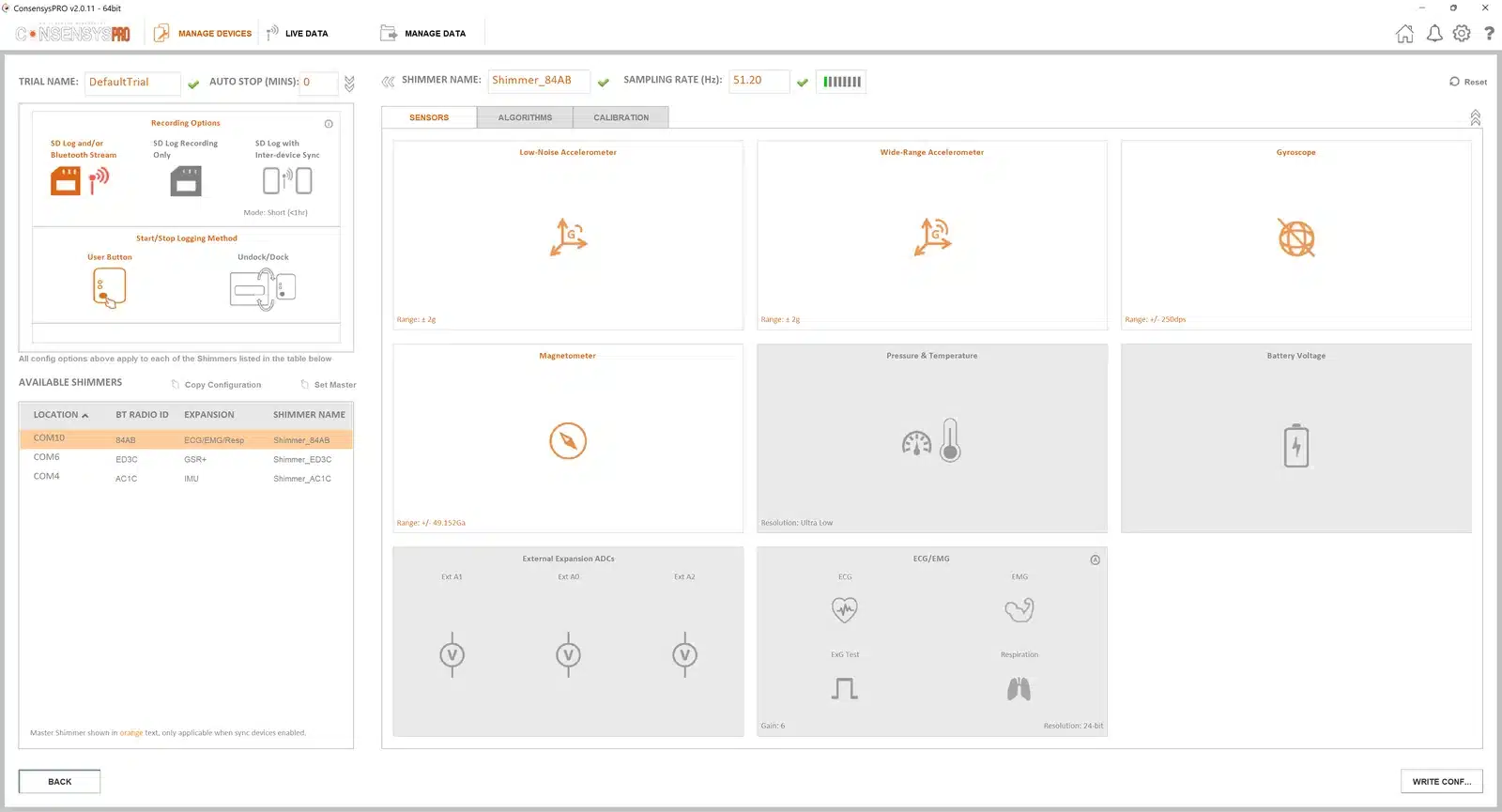
Figure 7‑9 Shimmer settings, sensors and WRITE CONFIG
7.4. Streaming and plotting
Take the Shimmers out of the Base or Dock.
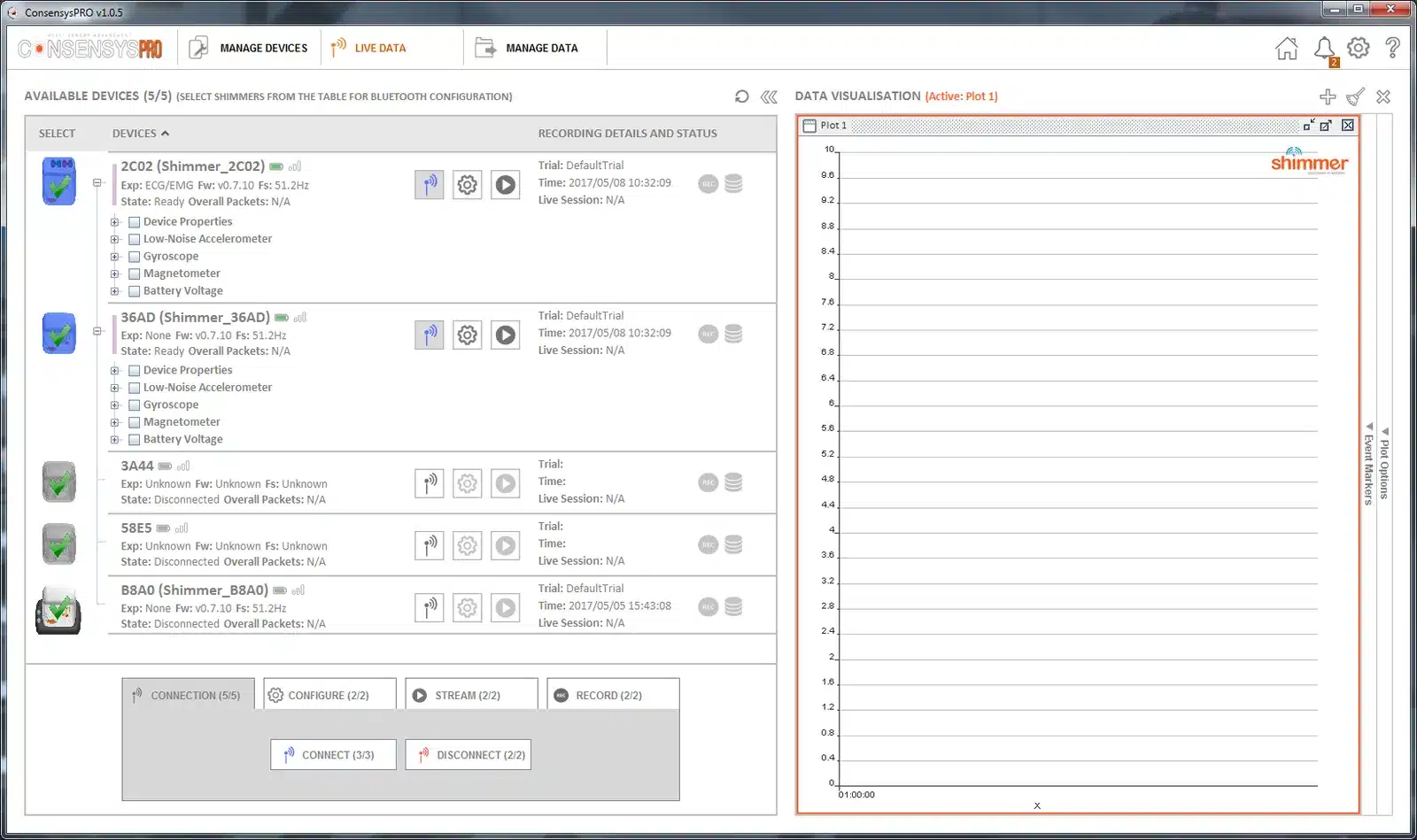
Figure 7‑10 Undocked Shimmers ready to stream
Choose the signals to plot, and click START to start streaming. Each plot can show several signals from several Shimmers. Device properties, such as the battery voltage, can be plotted but are not recorded.
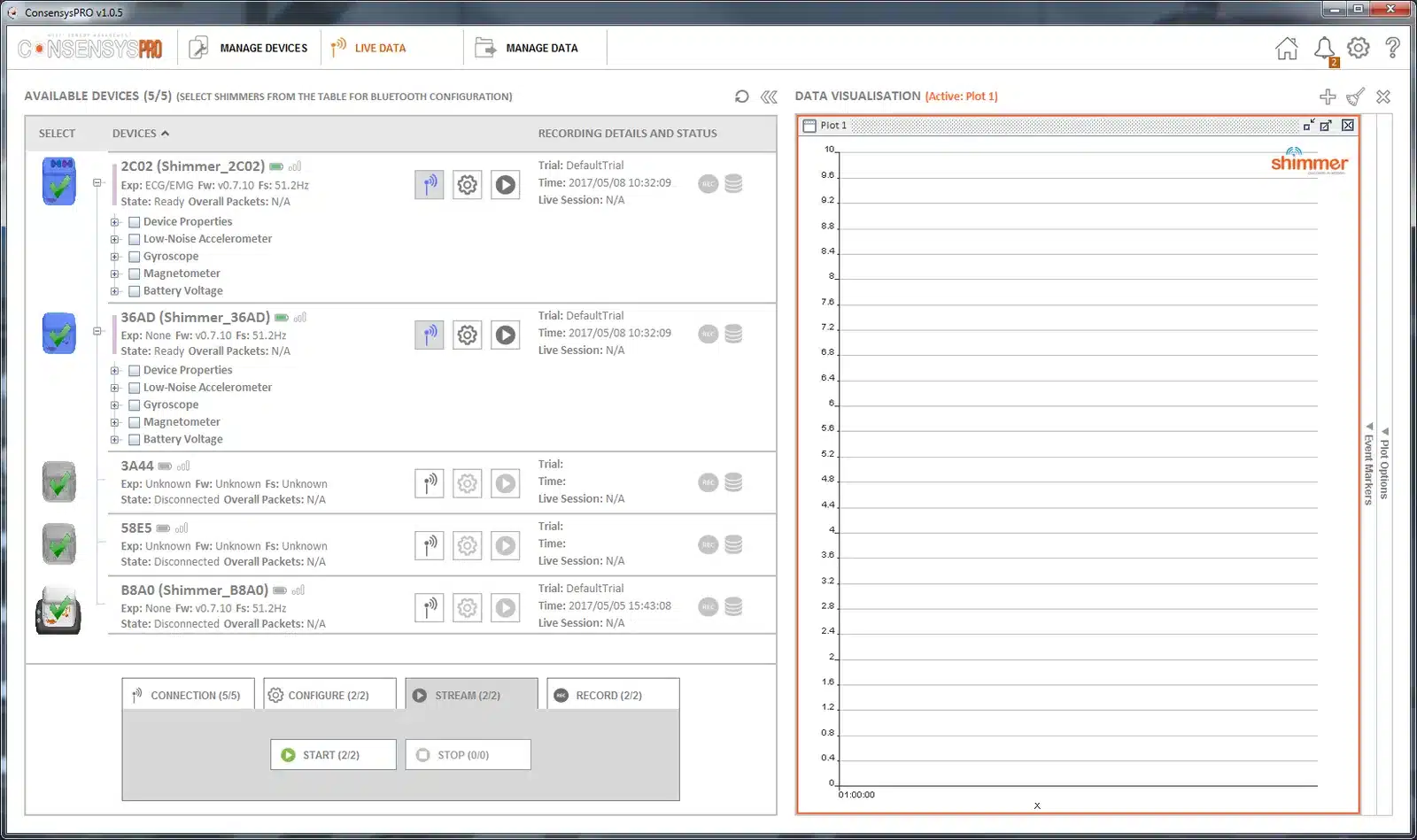
Figure 7‑11 Choosing signals and starting the stream
Right-click a plot to change its settings, such as the data format. The plot options also add plots, and pop a plot out of the main window or back in.
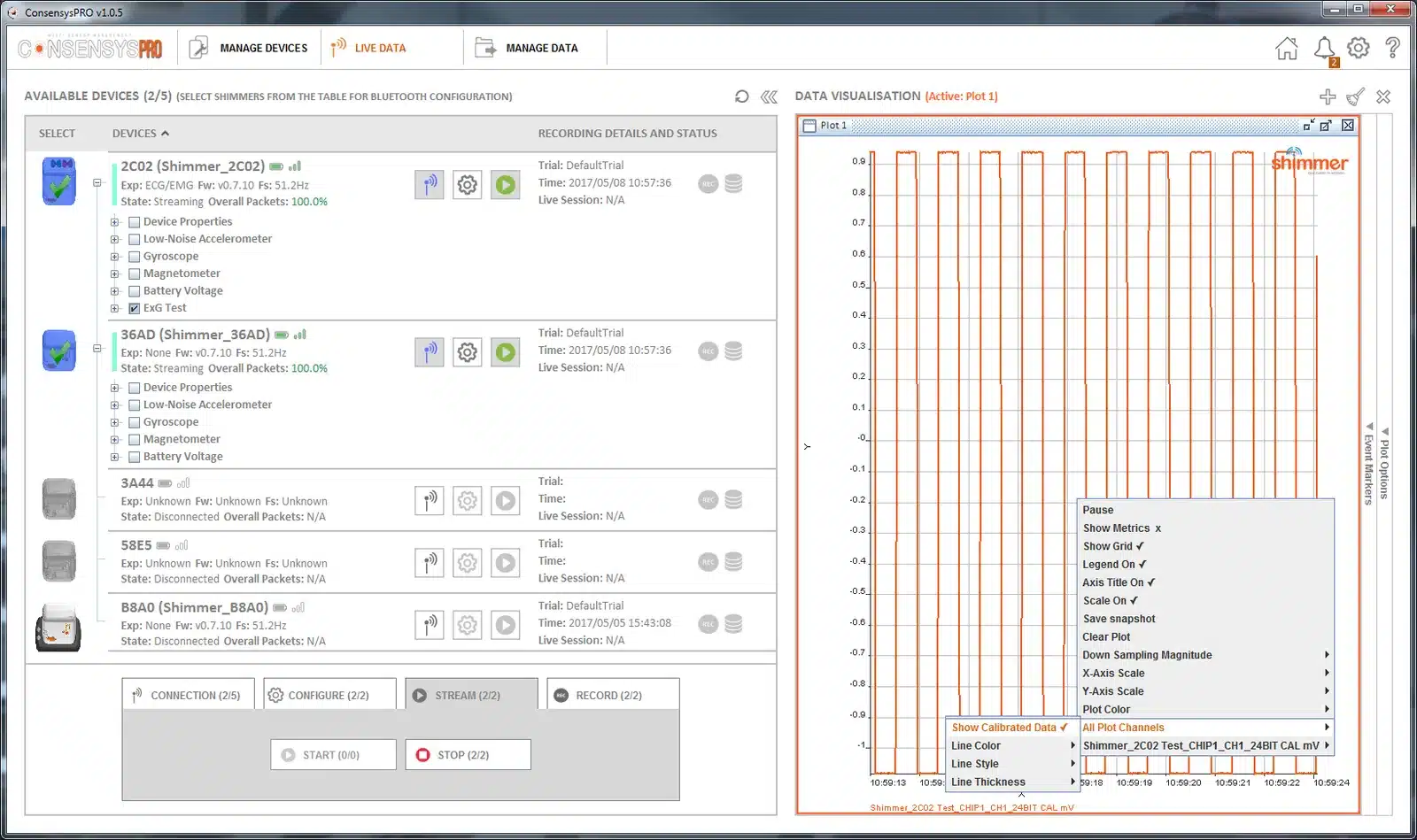
Figure 7‑12 Plot settings
7.5. Recording
On the RECORD tab, click START TO PC to record the stream to the PC. (START TO SD starts the Shimmers of the same trial logging to their SD cards.)
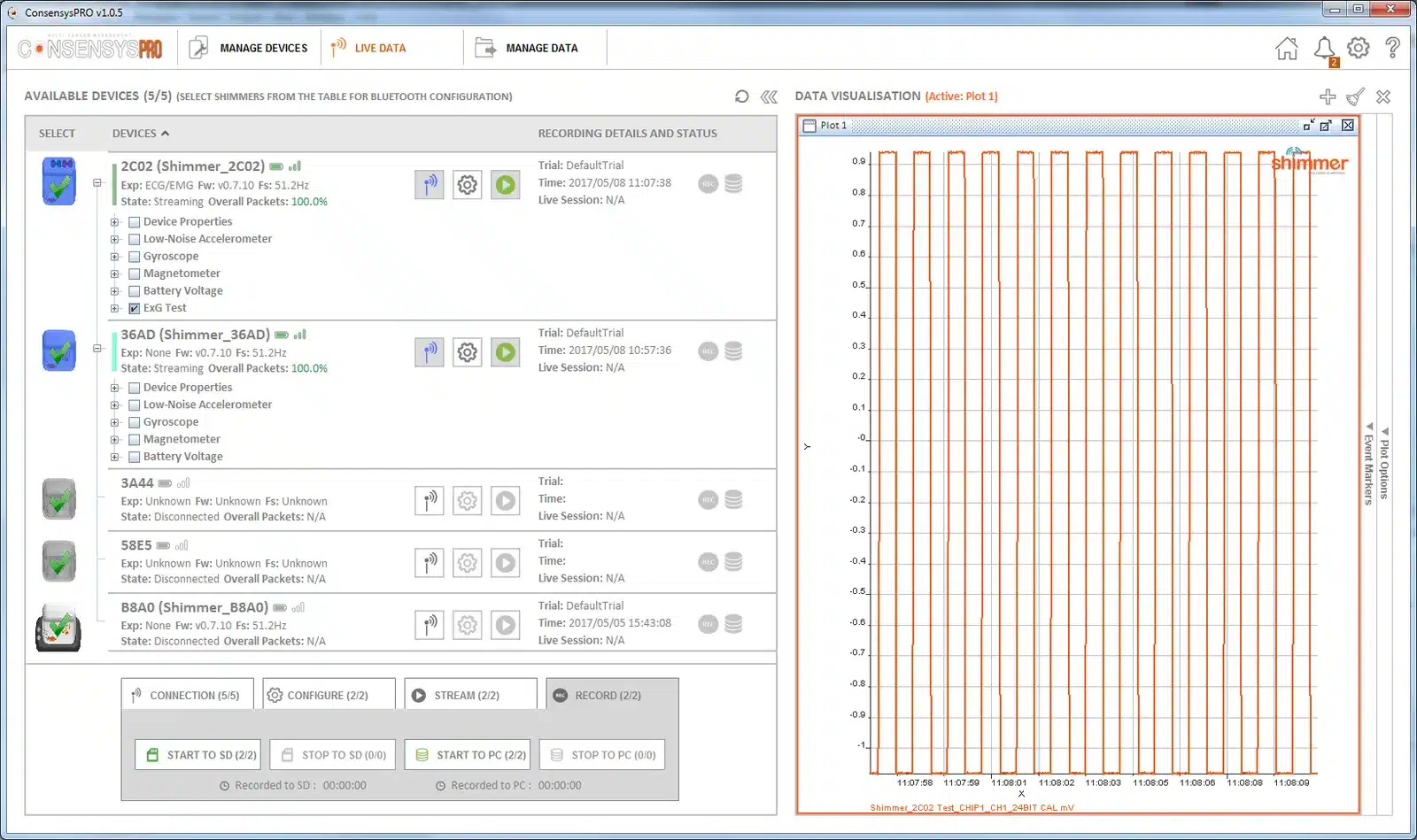
Figure 7‑13 The RECORD tab
If the selected Shimmers belong to more than one trial, choose the trial to record and click CONFIRM.
Click STOP TO PC to stop. Each recording is added to the trial as a new session.
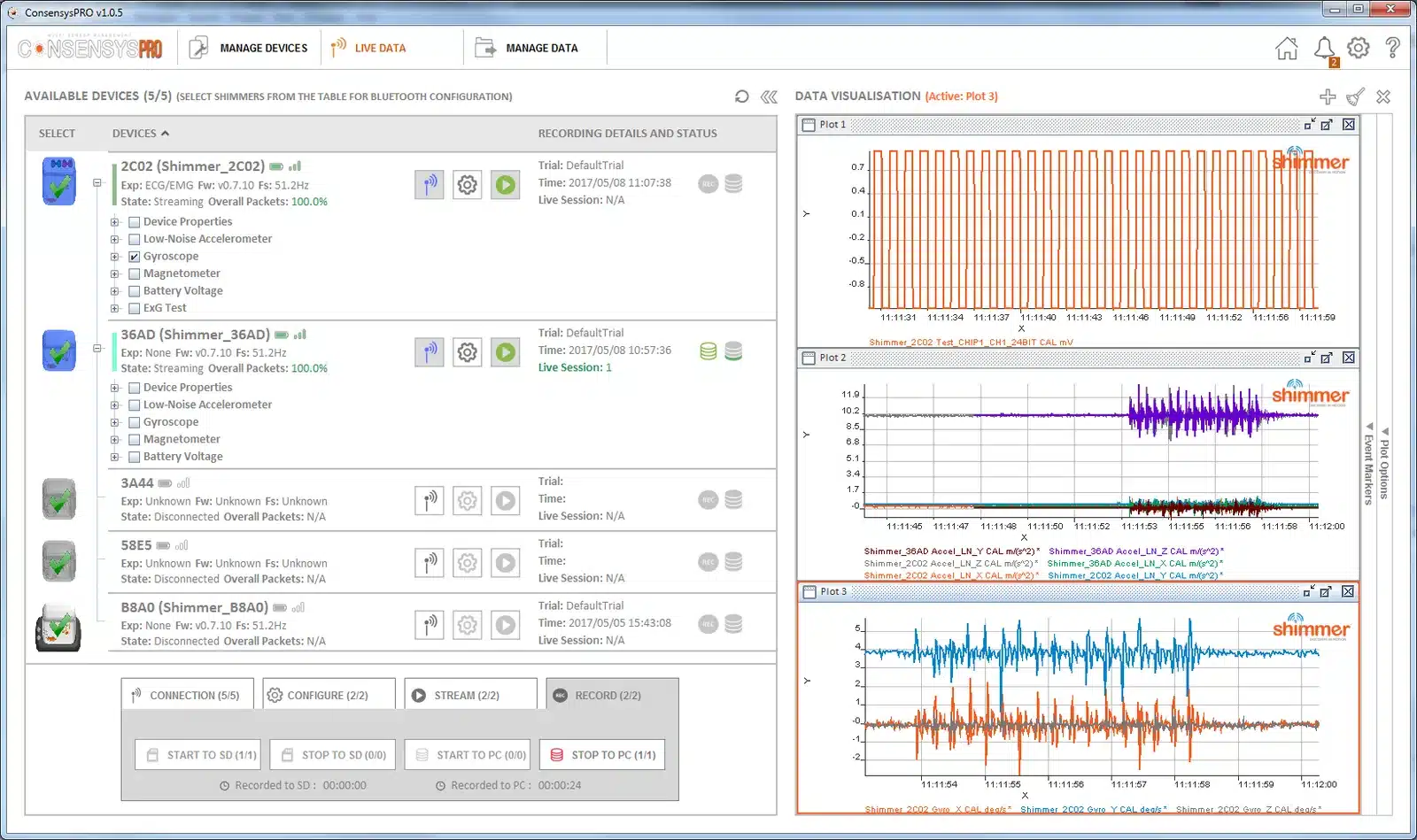
Figure 7‑14 Recording to the PC
To record to the SD cards and the PC at the same time, start streaming, start recording to SD (streaming pauses briefly), then start recording to the PC. Recordings to SD are imported afterwards (Section 6.3).
7.6. Event markers
ConsensysPRO only. Event markers mark moments during a recording, such as a stimulus or a fall. They are created, and used, while at least one Shimmer is connected over Bluetooth.
Create markers: slide out the event marker panel, and create markers of type Pulse or Toggle. Existing markers can be edited or deleted there.
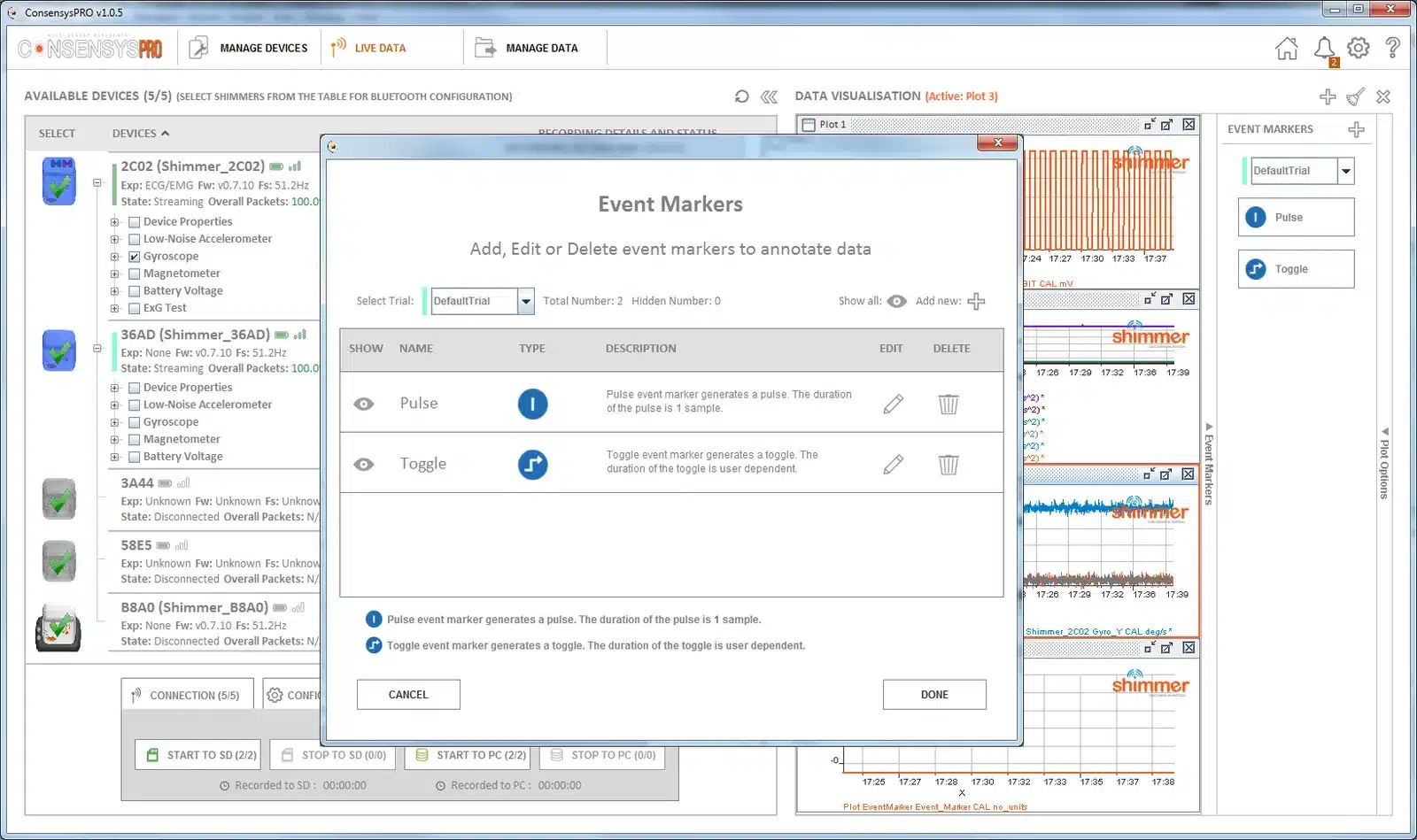
Figure 7‑15 Creating event markers
Mark events: press a marker’s button when the event happens. The marker is plotted, with a value that identifies which marker it was.
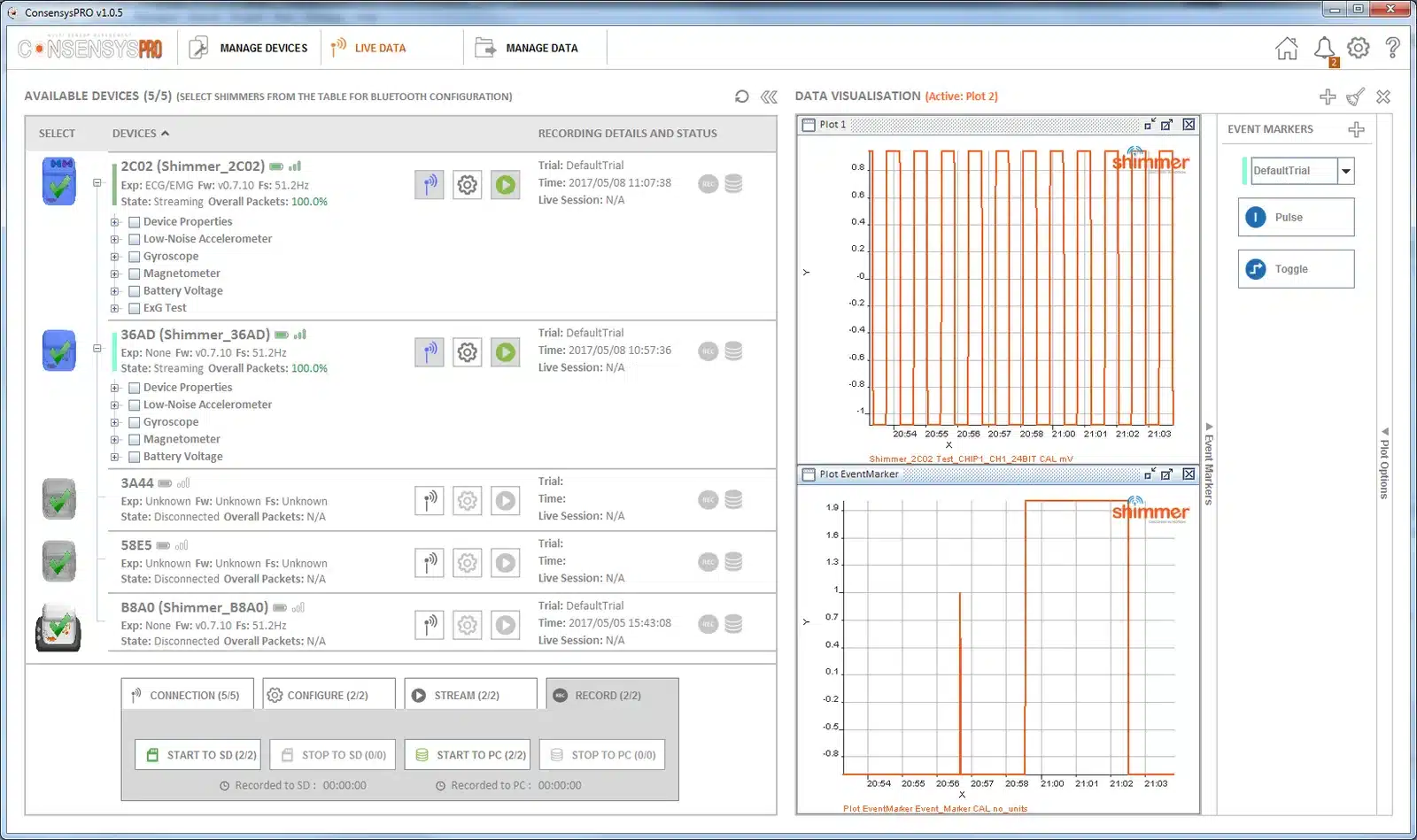
Figure 7‑16 Event marker buttons and their plot
Apply them: click APPLY to attach the markers to their datasets, so that they are exported with the sensor data.
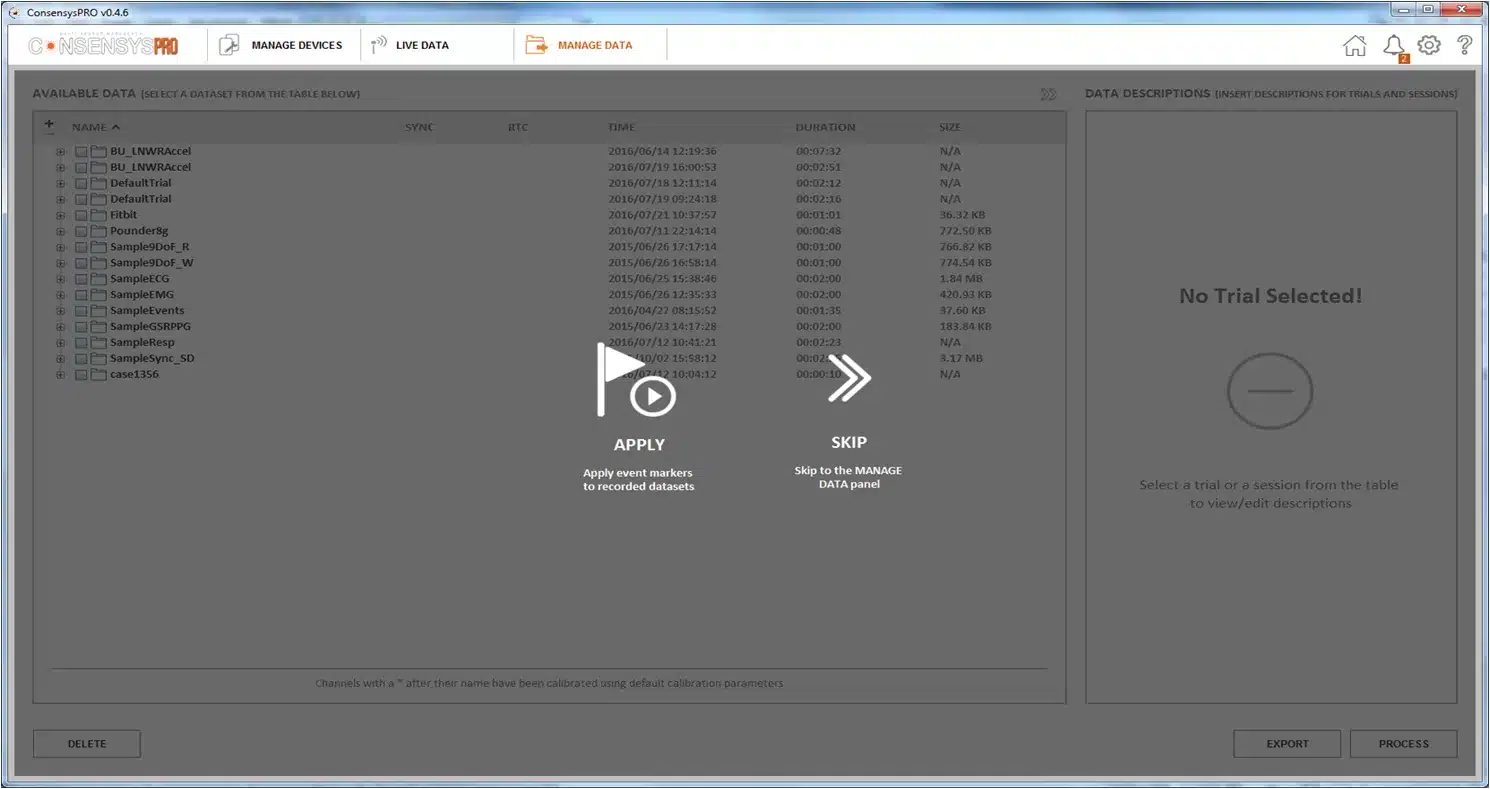
Figure 7‑17 Applying event markers
8. Calibrating the Sensors
Consensys calibrates the Shimmer’s accelerometers, gyroscope and magnetometer. Configure the Shimmer with the sensors you want to calibrate enabled and a sampling rate of 51.20 Hz, and start streaming: the Calibration button becomes available. Each sensor’s tab works only while that sensor is enabled and the rate is 51.20 Hz.
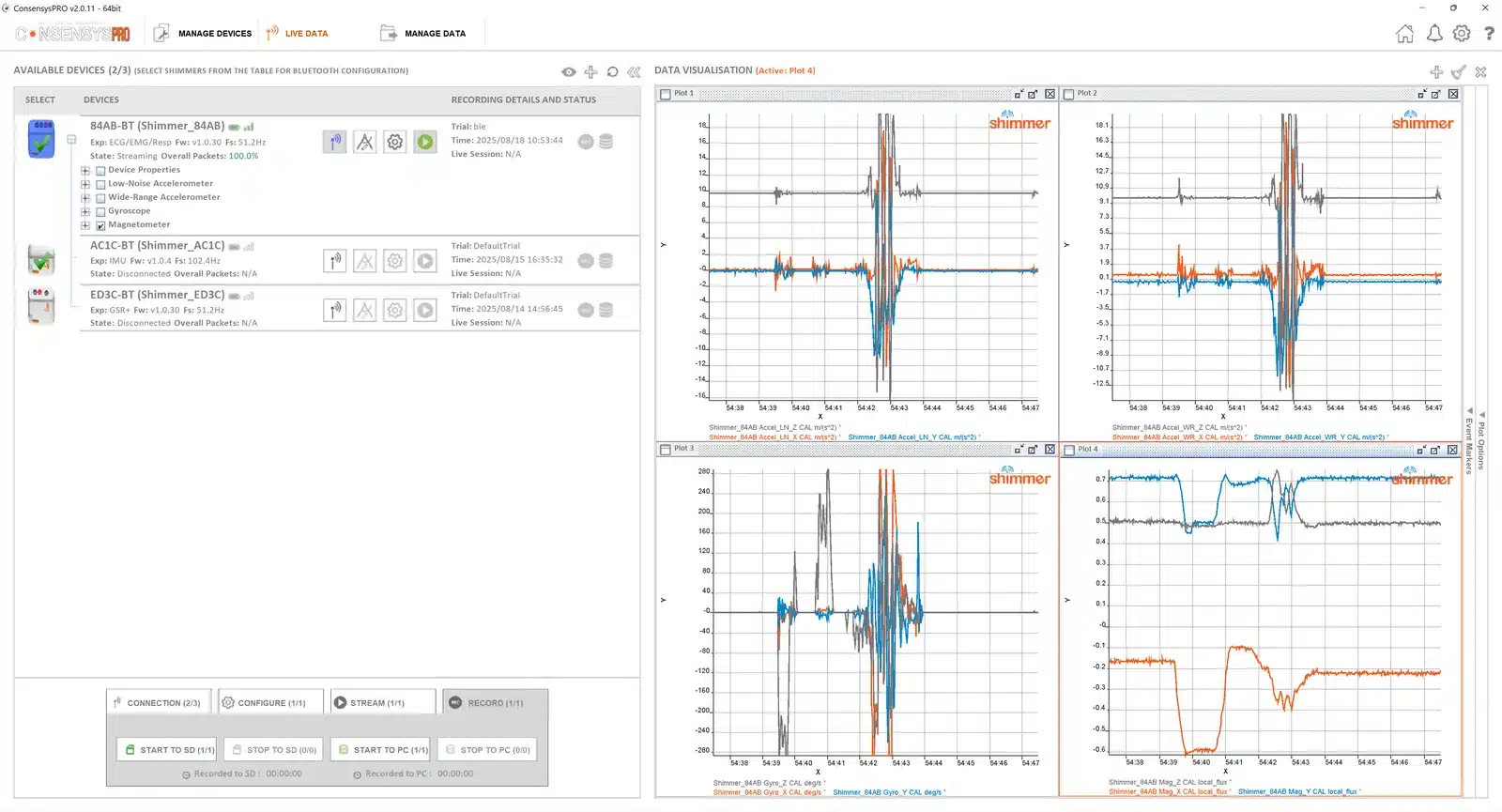
Figure 8‑1 The Calibration button
Choose the sensor, follow the steps shown, and save the new calibration to the Shimmer. The panel shows the new parameters beside those already saved on the Shimmer.
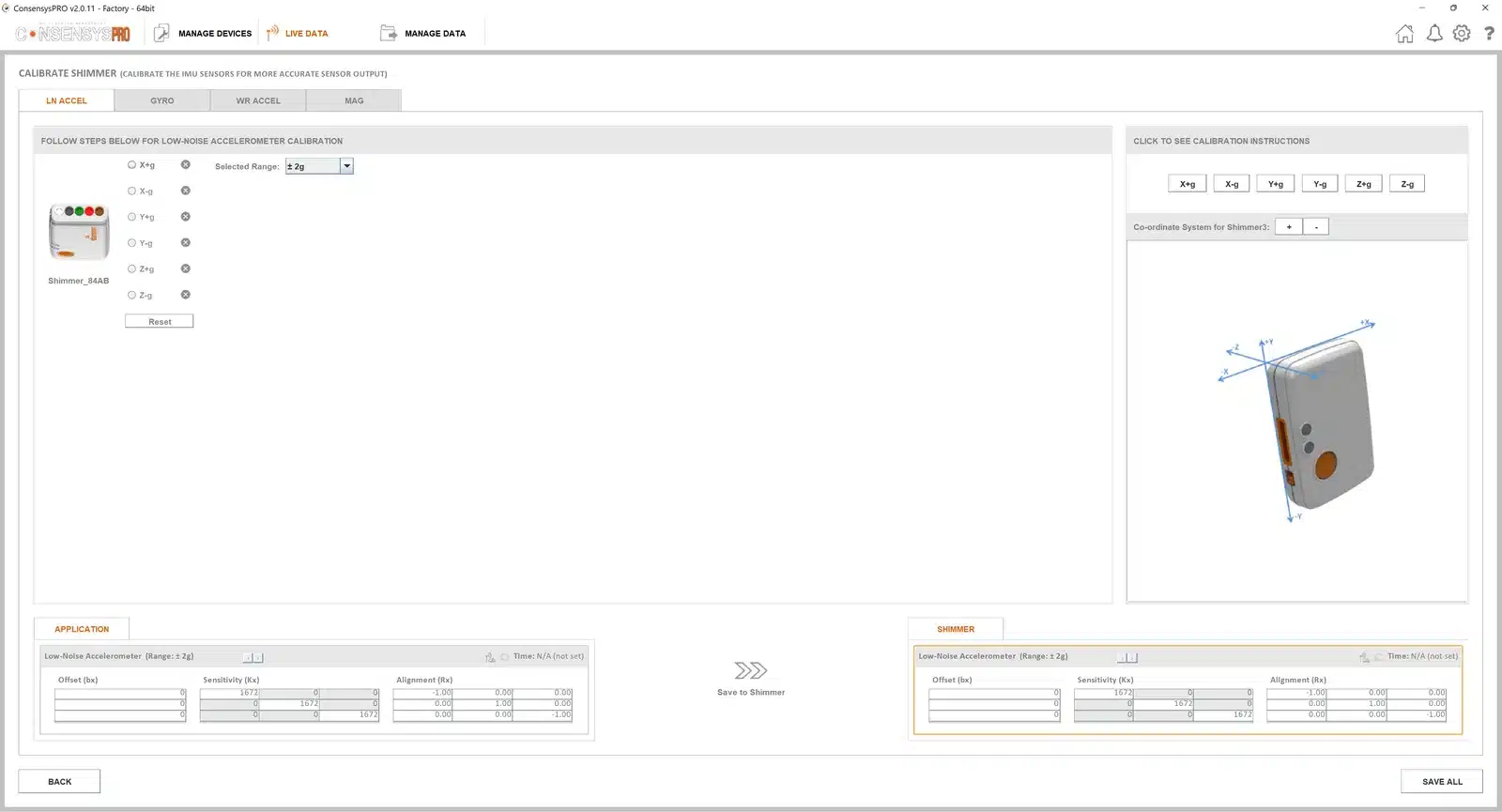
Figure 8‑2 Calibrating a sensor
What each step asks you to do, and how to check the result, is described in Calibrating the Sensors in the IMU User Guide.
9. Keyboard and Lab Streaming Layer
Keyboard: a keyboard can be added as a device. Its keys can then mark events while recording, and its keystrokes can be streamed over Lab Streaming Layer.
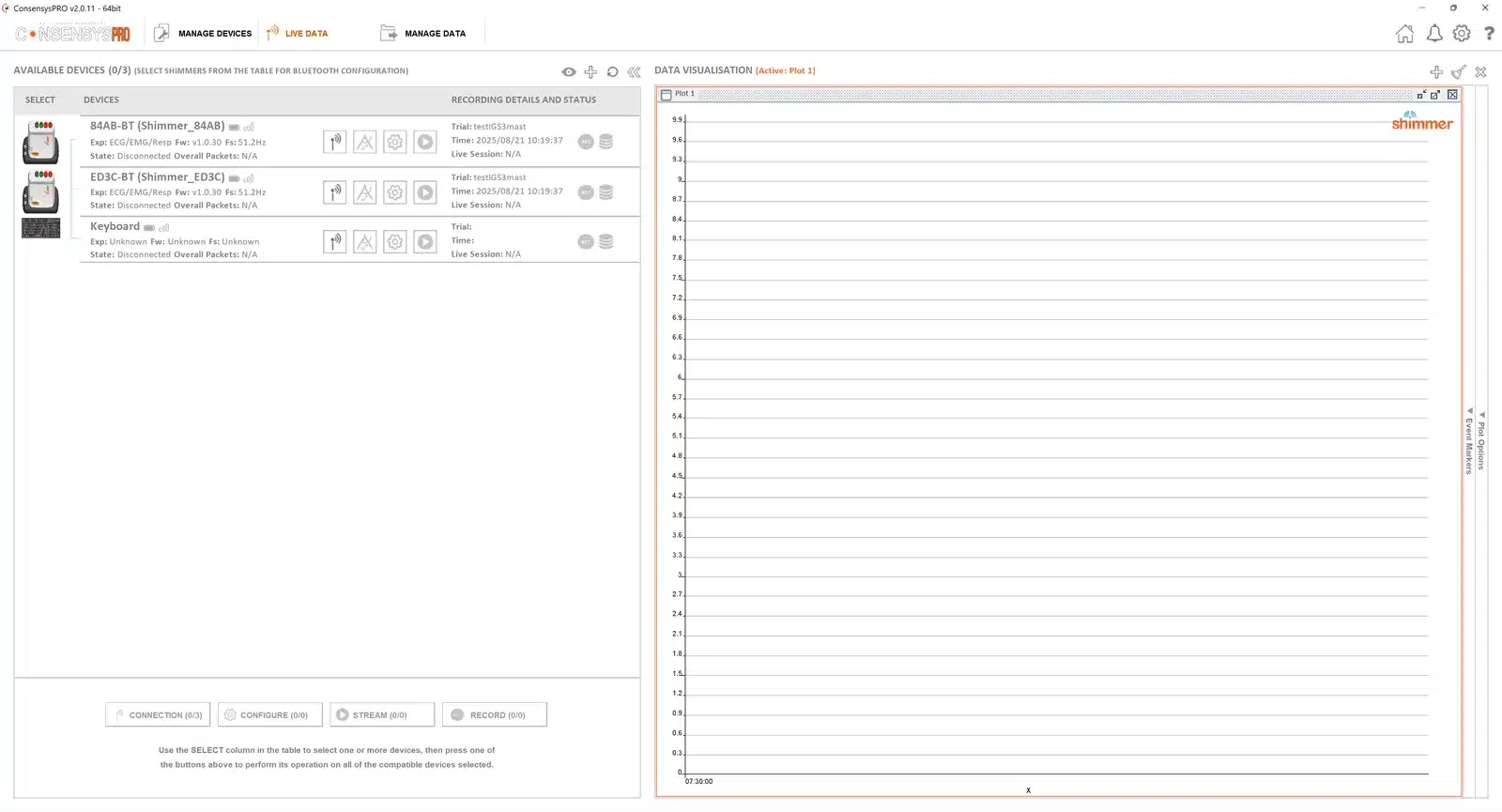
Figure 9‑1 Adding a keyboard
Lab Streaming Layer (LSL): Consensys can stream to Lab Streaming Layer, for recording alongside other LSL devices. Enable it in the settings. Its offset allows for latency: Bluetooth latency is typically about 25 ms and can reach about 100 ms (Bluetooth latency in the Shimmer3/3R User Manual), and an offset of 100 ms sets each sample’s LSL time to lsl_clock() - 0.1 s.
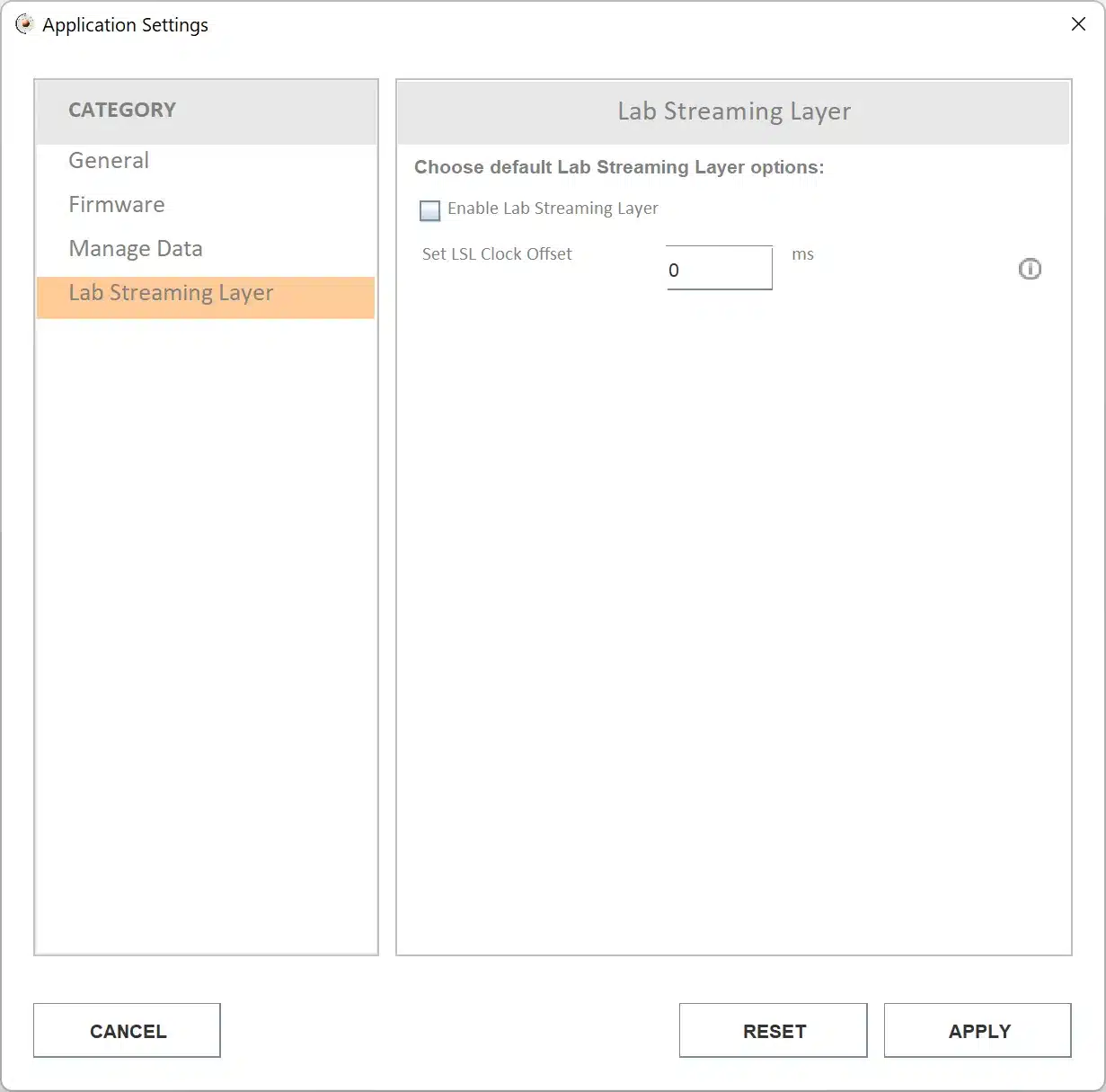
Figure 9‑2 Lab Streaming Layer settings
10. Managing Data
MANAGE DATA holds everything Consensys has recorded: SD recordings, imported from Shimmer SD cards (Section 6.3), and PC recordings, streamed and recorded over Bluetooth (Section 7.5).
10.1. The data list
Data is listed by trial, then session, then Shimmer. For a trial logged with SD Log with Inter-device Sync, M marks the master Shimmer, and green ticks in the SYNC column show that the Shimmers’ data was aligned successfully. Data descriptions (ConsensysPRO only) hold notes on each trial and session.
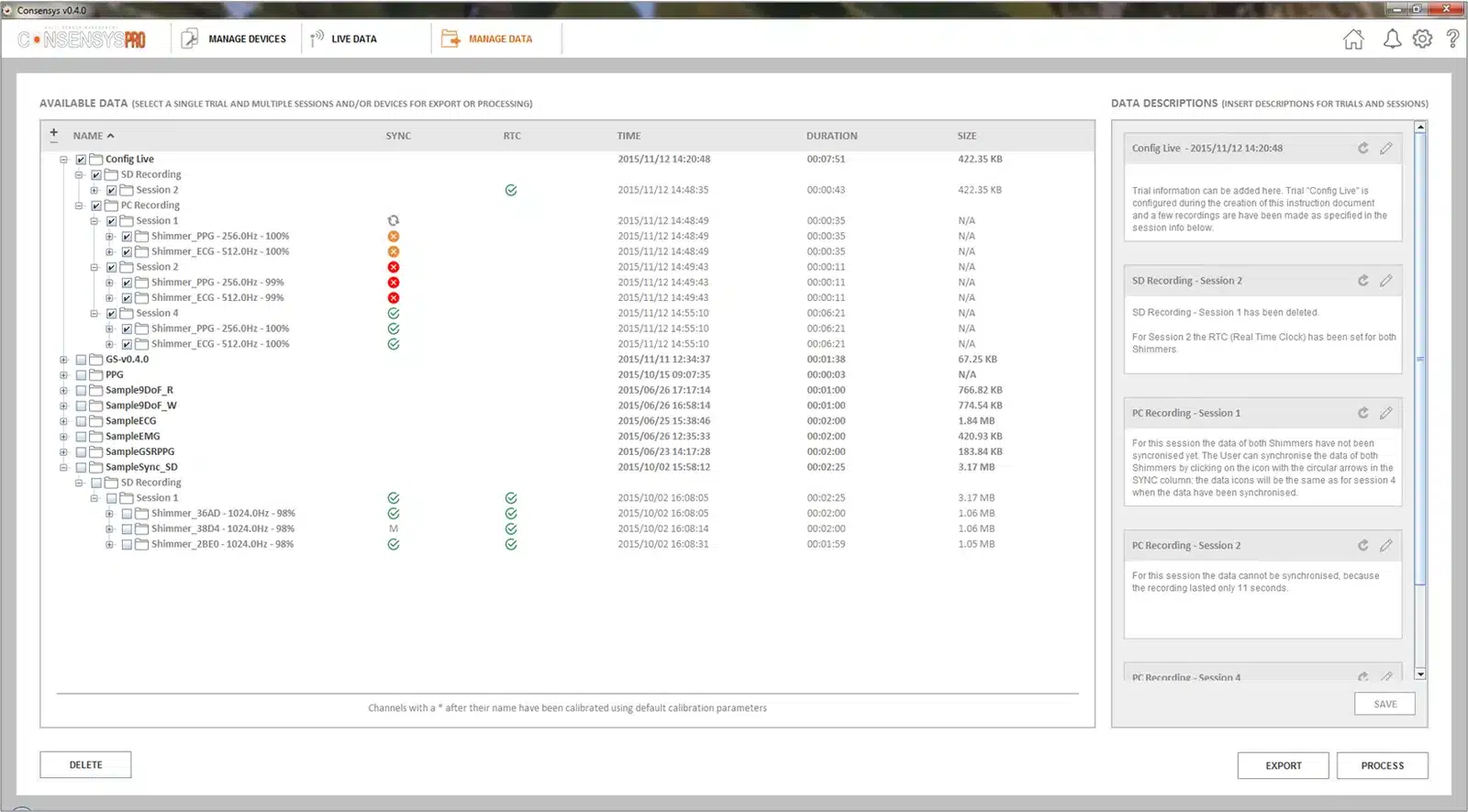
Figure 10‑1 MANAGE DATA
10.2. Exporting
Select one or more sessions from one trial, and click EXPORT.
Choose the File Delimiter, File Format, Timestamp Format and Data Format, and click OK.
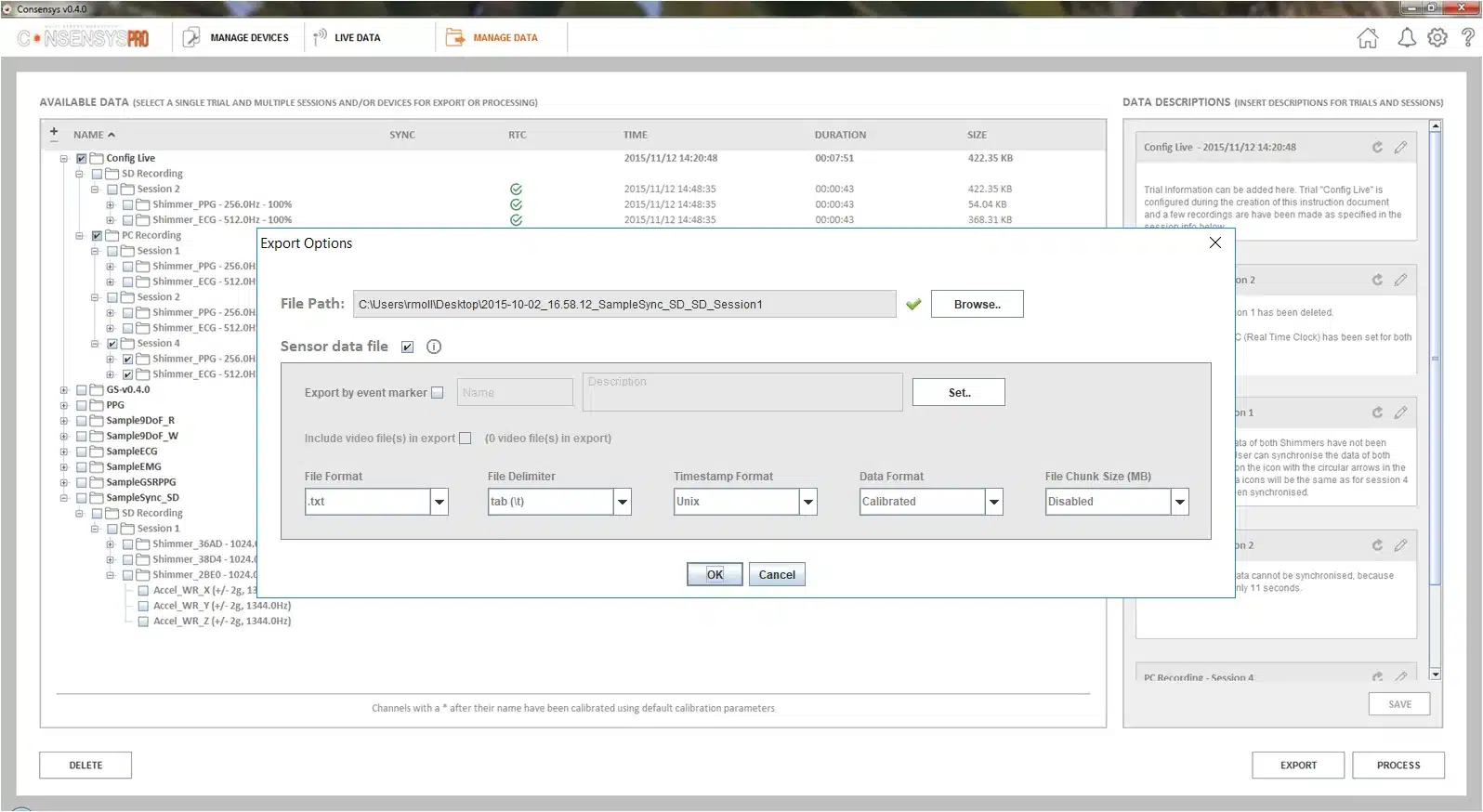
Figure 10‑2 Export options
When the export has finished, click OPEN PATH to find the files. They open in a spreadsheet, or in tools such as MATLAB.
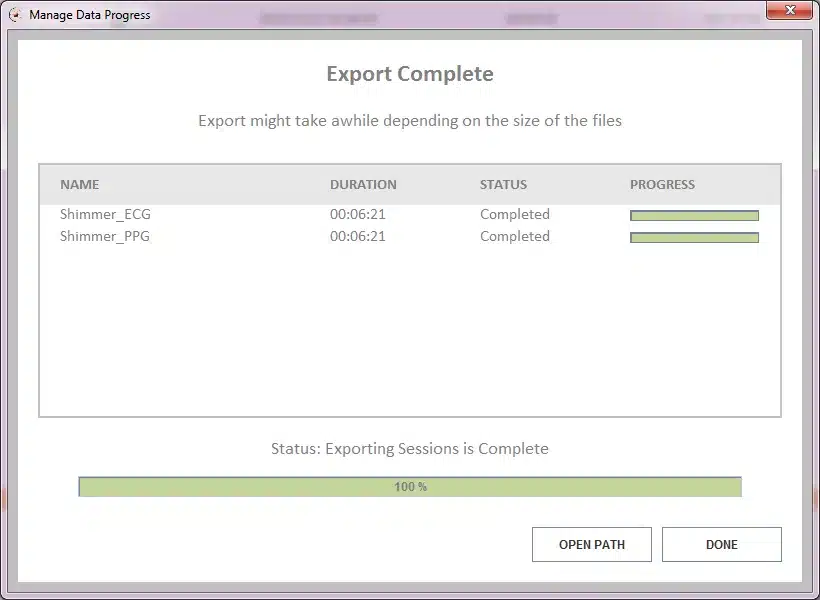
Figure 10‑3 Export complete
10.3. Deleting
Select the data to delete, click DELETE, and click YES to confirm.
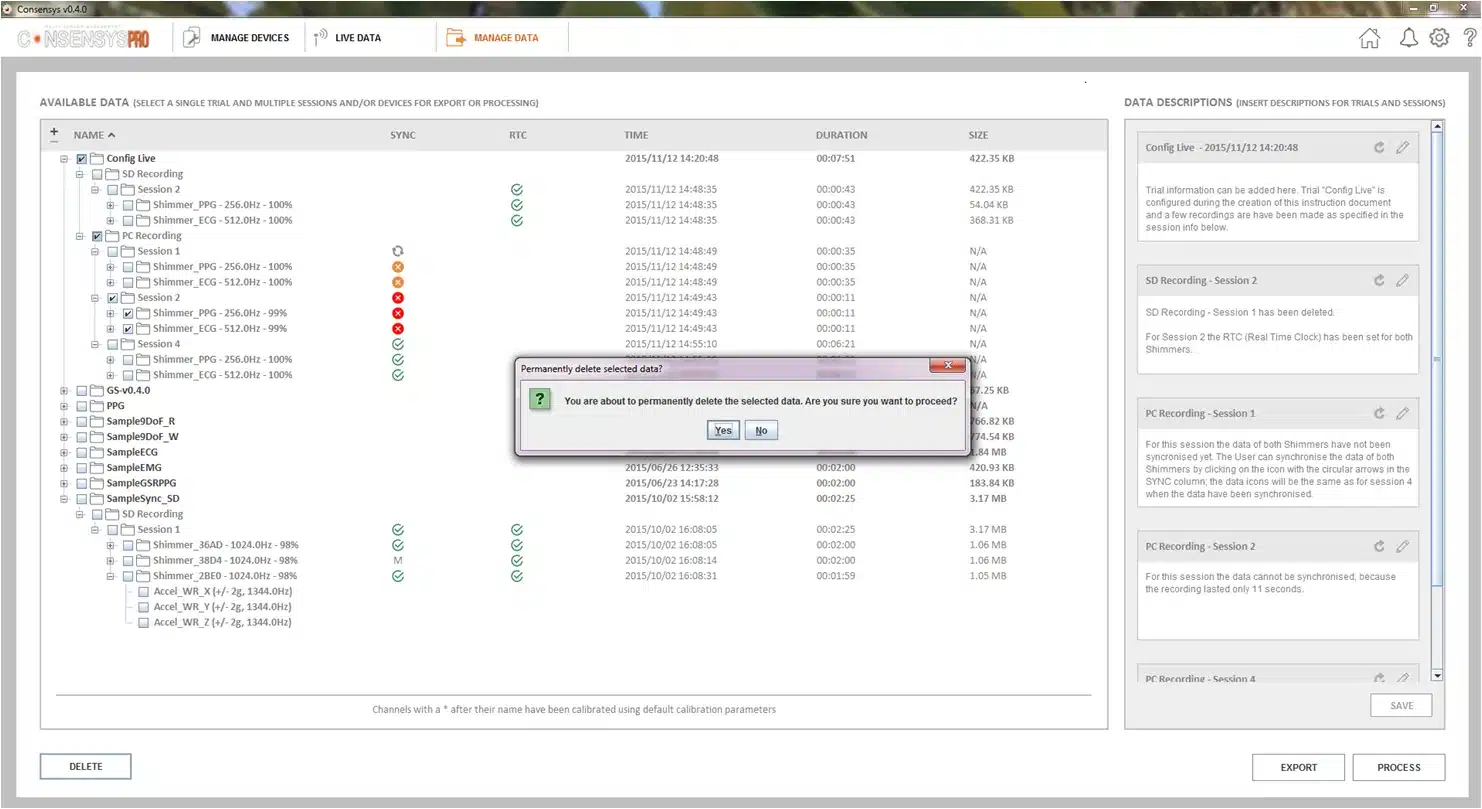
Figure 10‑4 Deleting data
Click DONE when it has finished. The data no longer appears in the list.
10.4. Processing
ConsensysPRO only. Recorded signals can be filtered, or run through algorithms, and the results added to the session.
Select the signals to process, for example an ECG lead, and click PROCESS.
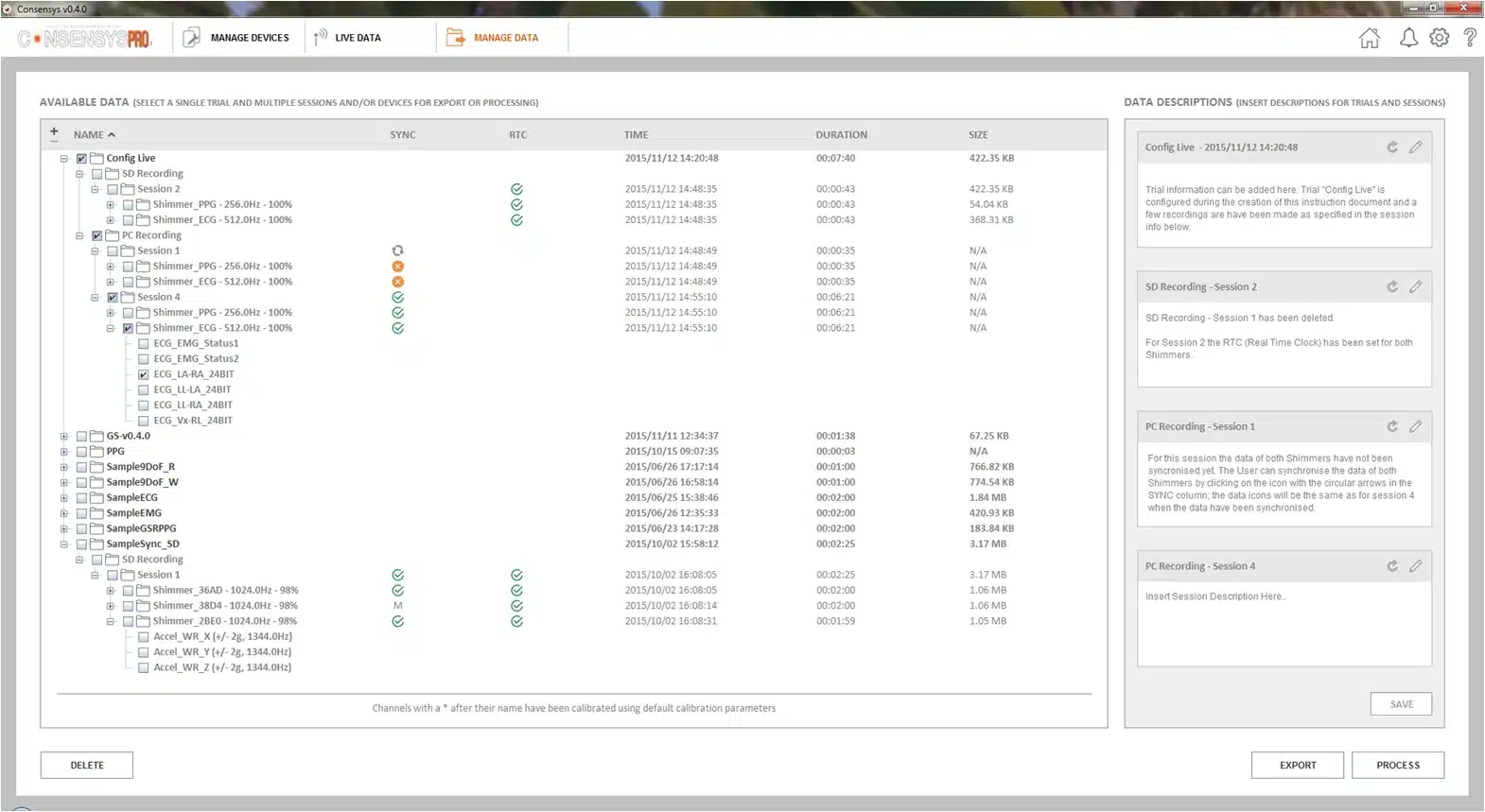
Figure 10‑5 Choosing signals to process
Choose Filters or Algorithms; only the algorithms suited to the selected signals are offered. A filter step applies one filter; to apply another, process the result again. Click NEXT.
Select the signals, set the filter’s parameters, add them to PROCESSED SIGNALS OUT, and click Apply.
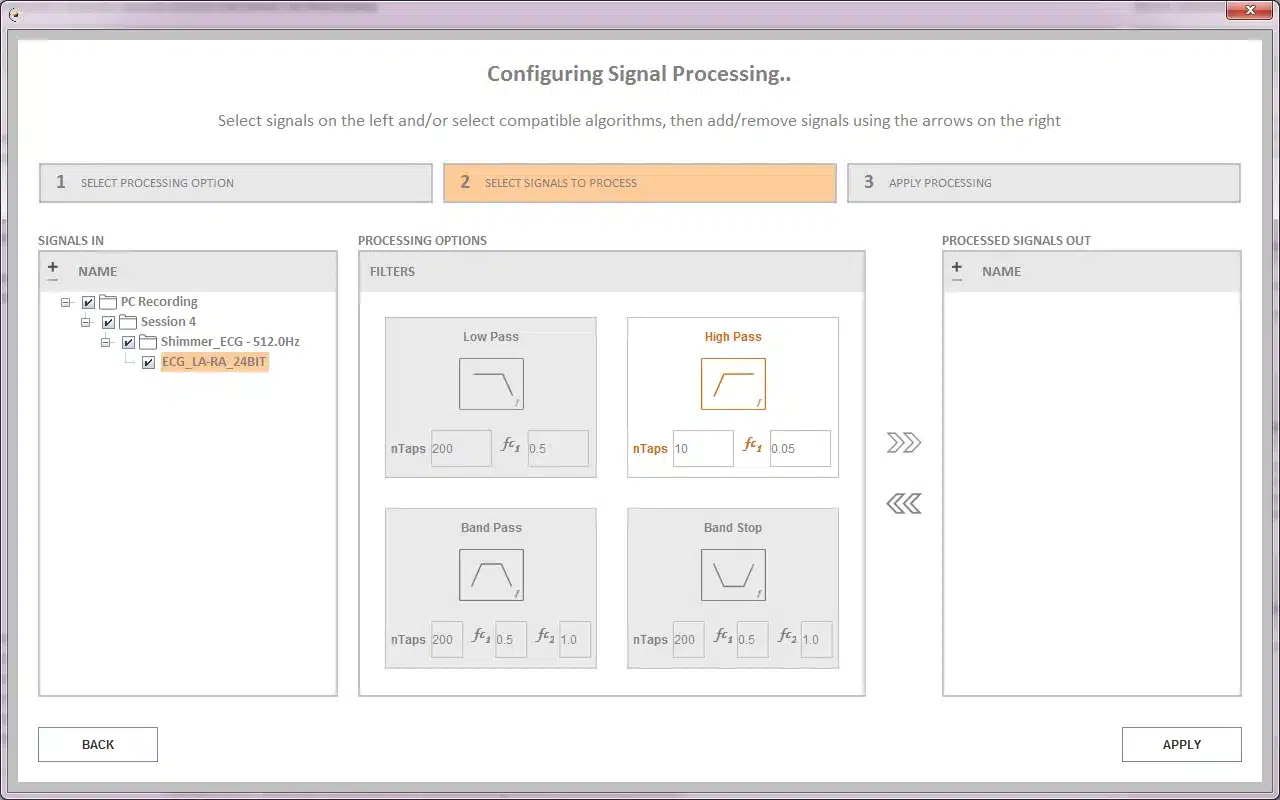
Figure 10‑6 Setting up the processing
Click DONE when processing has finished. The processed signal, here ECG_LA_RA_24BIT_HPF, is added to the session.
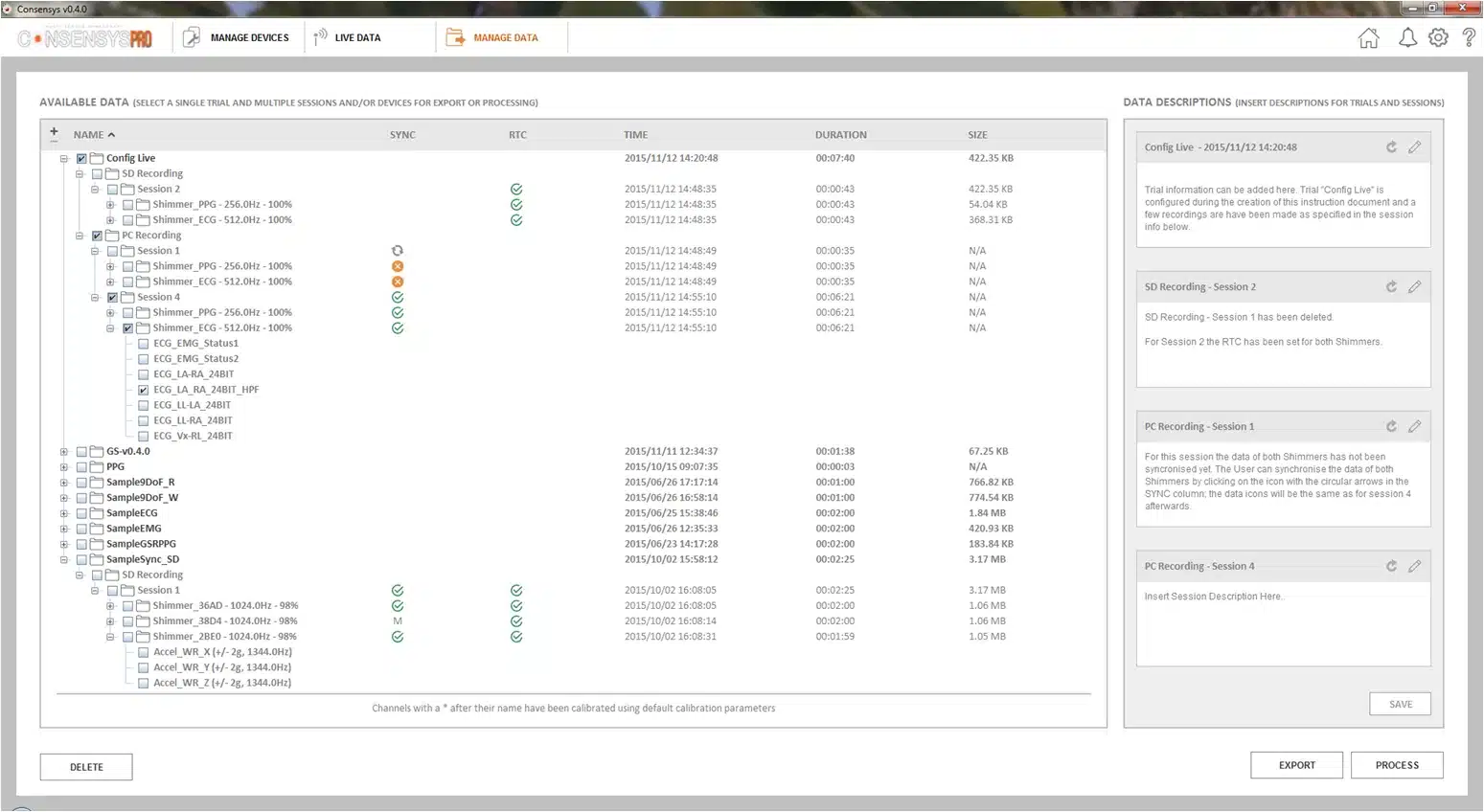
Figure 10‑7 The processed signal added to the session
10.5. What an exported file contains
An export writes one file for each Shimmer in each selected session, into a new folder. This section describes those files: their names, their header rows, the timestamp column and the column for each sensor.
10.5.1. Export options
| Option | Choices | What it changes |
|---|---|---|
| File Format | .csv (default), .dat, .txt, .mat |
.csv, .dat and .txt are the same delimited text; only the extension differs. .mat is a MATLAB file (Section 10.5.4). |
| File Delimiter | Tab (default), Comma, Semicolon | The character between columns in a text file. Not used for .mat. A tab-delimited file still has the .csv extension unless another format is chosen. |
| Timestamp Format | Unix (default), Formatted Local, Shimmer | The first column of the file (Section 10.5.5). Formatted Local cannot be used with .mat: choosing one switches the other back to its default. |
| Data Format | Calibrated (default), Uncalibrated | Calibrated values in physical units, or the raw values the Shimmer measured (Section 10.5.6). |
| File Chunk Size (MB) | Disabled (default), 10, 25, 50, 100, 200 | Splits each file into parts of about this size. |
| Export by event marker | On or off, with Set.. to choose markers | Exports only the samples at which a chosen event marker is set. |
| Include video file(s) in export | On or off | Copies any video recorded with the session into the export folder. |
Table 10‑1 Export options
10.5.2. Folder and file names
Folder: each export creates a folder named after the trial and the sessions exported, for example 2026-10-08_14.22.05_GaitStudy_SD_Session3. It starts with the date and time the trial was configured; it ends with _SD (SD recording) or _PC (PC recording) and the session, or with _MultiSession when more than one session is exported. Consensys will not export into a folder that already exists: move or rename the earlier export first.
Files: one file per Shimmer per session, named
<Trial>_Session<N>_<Shimmer name>_<Calibrated|Uncalibrated>_<SD|PC>.<format>
for example GaitStudy_Session3_Shimmer_86F8_Calibrated_SD.csv. If a participant ID is recorded for that Shimmer and session, it comes first, followed by a full stop. When a file chunk size is set, every file gets a part number, _001, _002 and so on, before the extension, and each part starts with the full header rows.
Data Descriptions.txt (ConsensysPRO only) is written beside the data files. It holds the trial’s time zone and UTC offset, the trial and session descriptions, and, for each session, the event markers used: their code, how many times each was used, name and description.
10.5.3. Text files (.csv, .dat, .txt)
A text file has three header rows, then one row per sample:
"sep=,"(or the tab or semicolon chosen). This tells Microsoft Excel which delimiter the file uses, so the file opens in columns. Other programs may need to skip this row.- The column names.
- The units of each column.
For example, the start of a calibrated, tab-delimited export from a Shimmer3R GSR+ Unit (tabs shown as spaces, columns trimmed):
"sep=   "
Shimmer_86F8_Timestamp_Unix_CAL  Shimmer_86F8_LIS2DW12_ACC_X_CAL  ...  Shimmer_86F8_GSR_Skin_Conductance_CAL  Shimmer_86F8_GSR_Skin_Resistance_CAL  Shimmer_86F8_PPG_A1_CAL  Shimmer_86F8_BMP390_Pressure_CAL
ms                               m/(s^2)                          ...  uS                                     kOhms                                 mV                       kPa
1.7897147642417297E12 1.0149611011370436 ... 125.0 8.0 0.7326007326007326 100.83801757275134- Column names are
<Shimmer name>_<channel>_<CAL|UNCAL>. The timestamp column is always_CAL, even in an uncalibrated export. - The first column is the timestamp. Then come the channels selected for export, and the event marker column, if any, is always last.
- Every row ends with a delimiter, so some programs show an extra, empty column at the end.
- Numbers are written at full precision, and large numbers in scientific notation:
1.7897147642417297E12is 1 789 714 764 241.7297 ms. Spreadsheets and MATLAB read this form. - A missing value is written as
-1, for example a heart-rate column before the algorithm has found a beat.
10.5.4. MATLAB files
A .mat file holds one variable per column, each a column of numbers (double), named like the text file’s column names but with every - changed to _, for example Shimmer_86F8_ECG_LL_RA_24BIT_CAL. A .mat file has no units and no sep row; the units are those of the text export in Table 10‑2 and Table 10‑3. The timestamp variable is always _CAL. Formatted Local timestamps are not available in a .mat file.
10.5.5. The timestamp column
The first column is the timestamp, in the format chosen with Timestamp Format (Table 10‑1). Consensys offers three formats. The default, Unix, gives each sample’s time in milliseconds since 1 January 1970 (UTC). Every format’s timestamps are in milliseconds, except Formatted Local, which is a date and time.
| Timestamp Format | Column name | Value | Units row |
|---|---|---|---|
| Unix | Timestamp_Unix or TimestampSync_Unix |
Milliseconds since 00:00:00 UTC, 1 January 1970, with a fractional part | ms |
| Formatted Local | Timestamp_FormattedUnix or TimestampSync_FormattedUnix |
Date and local time, yyyy/MM/dd HH:mm:ss.SSS, 24-hour clock, for example 2026/10/08 14:22:05.125 |
yyyy/mm/dd hh:mm:ss.000 |
| Shimmer | Timestamp_Shimmer or TimestampSync_Shimmer |
Milliseconds on the Shimmer’s own clock. This clock is not related to the date or time of day. | Ticks or ms (see below) |
Table 10‑2 Timestamp formats
- Where Unix time comes from. For an SD recording, it is the Shimmer’s real-time clock, which Consensys sets when the Shimmer is docked (Section 11.1). For a PC recording, it is the Shimmer’s timestamp converted to the PC’s clock where Consensys could do so, otherwise the time at which the PC received the sample.
TimestampSyncmarks aligned timestamps. In a trial logged with SD Log with Inter-device Sync, they are the master’s timestamps and the other Shimmers’ once aligned to the master. In a PC recording, they are the Shimmer’s timestamps converted to the PC’s clock. A Shimmer in a synchronised trial that could not be aligned is exported withTimestamp, unaligned, and Consensys says so before the export.- If the clock was not set (the Shimmer’s LEDs flashed green and blue), there is no Unix time for an SD recording. Consensys warns that the “Shimmer Timestamp will be exported instead”, and the export uses the Shimmer format.
- Formatted Local is the Unix time shown at the UTC offset recorded with the trial (written in Data Descriptions.txt), and so needs the clock set too. The same offset is used for the whole export: it does not change for daylight saving time. If the clock was not set, Consensys gives no warning: a Formatted Local export shows dates on 1 January 1970, counted from the Shimmer’s own clock. Use the Shimmer format, or set the clock before recording.
- The Shimmer format’s units row can read
Ticks, but its values are milliseconds, not ticks of the Shimmer’s clock (one tick is 1/32768 s). Read the column as milliseconds whatever its units row says. This affects only the Shimmer format: the default Unix format’s units row readsms.
10.5.6. Calibrated and uncalibrated data
- Calibrated values are in the units in Table 10‑3, using each sensor’s calibration (Section 8).
- Uncalibrated values are the raw numbers the Shimmer measured: ADC counts for the analogue channels, GSR, PPG and battery; the sensor’s raw reading for the accelerometers, gyroscope, magnetometer and pressure sensor; ExG counts. Their units row reads
no_units. Channels that only exist after processing (filters, heart rate, quaternions) have no uncalibrated form and are left out.
10.5.7. Sensor columns
Table 10‑3 gives the <channel> part of each column name. Shimmer3R: most inertial and pressure columns are named after the sensor chip, as the table shows, rather than after the measurement.
| Sensor | Shimmer3 column | Shimmer3R column | Calibrated units |
|---|---|---|---|
| Low-noise accelerometer | Accel_LN_X, _Y, _Z |
LSM6DSV_X, _Y, _Z |
m/(s^2) |
| Wide-range accelerometer | Accel_WR_X, _Y, _Z |
LIS2DW12_ACC_X, _Y, _Z |
m/(s^2) |
| Gyroscope | Gyro_X, _Y, _Z |
LSM6DSV_GYRO_X, _Y, _Z |
deg/s |
| Magnetometer | Mag_X, _Y, _Z |
LIS2MDL_MAG_X, _Y, _Z |
local_flux |
| High-g accelerometer (Shimmer3R IMU only) | – | ADXL371_ACC_X, _Y, _Z |
m/(s^2) |
| Pressure | Pressure_BMP180 or Pressure_BMP280 |
BMP390_Pressure, or Pressure_BMP581 on units with the BMP581 |
kPa |
| Temperature (pressure sensor) | Temperature_BMP180 or Temperature_BMP280 |
BMP390_Temperature, or Temperature_BMP581 |
Degrees Celsius |
| Battery voltage | Battery |
Battery |
mV |
| External analogue inputs | Ext_Exp_A7, Ext_Exp_A6, Ext_Exp_A15 |
F5437a_Ext_A0, F5437a_Ext_A1, F5437a_Ext_A2 |
mV |
| Internal analogue inputs | Int_Exp_A1, Int_Exp_A12, Int_Exp_A13, Int_Exp_A14 |
F5437a_Int_A3, F5437a_Int_A0, Int_Exp_A1, F5437a_Int_A2 |
mV |
| GSR: skin resistance | GSR_Skin_Resistance |
GSR_Skin_Resistance |
kOhms |
| GSR: skin conductance | GSR_Skin_Conductance |
GSR_Skin_Conductance |
uS |
| GSR: range in use | GSR_Range |
GSR_Range |
no_units (0 to 3) |
| PPG | PPG_A12 or PPG_A13 |
PPG_A0 or PPG_A1 |
mV |
| PPG, two probes (PROTO3 Deluxe) | PPG1_A12, PPG1_A13, PPG2_A1, PPG2_A14 |
PPG1_A0, PPG1_A1, PPG2_A3, PPG2_A2 |
mV |
| Bridge amplifier | Bridge_Amp_High, Bridge_Amp_Low |
Bridge_Amp_High, Bridge_Amp_Low |
mV |
| Skin temperature probe (Bridge Amplifier+) | Skin_Temperature |
Skin_Temperature |
Degrees Celsius |
| Resistance amplifier | Resistance_Amp |
Resistance_Amp |
mV |
| Event markers | Event_Marker |
Event_Marker |
no_units |
Table 10‑3 Sensor columns and calibrated units
The analogue inputs are listed in the same order in both columns: Shimmer3R’s Ext A0 is Shimmer3’s Ext A7, and so on. On Shimmer3R the Int A1 column is named Int_Exp_A1, as on Shimmer3; the other Shimmer3R analogue columns start with F5437a_.
Event markers: the column holds the code of the marker set at that sample. Each marker’s code is a power of two (1, 2, 4, 8 …), listed with its name in Data Descriptions.txt. If several markers are active at a sample, the column holds the sum of their codes: markers 1 and 4 together read 5.
ExG: the column names depend on the ExG configuration chosen (Table 10‑4). Each channel is _24BIT or _16BIT, after the resolution set. Calibrated ExG values are in mV; the status columns ECG_EMG_Status1 and ECG_EMG_Status2 have no_units. The names are the same on Shimmer3 and Shimmer3R.
| Configuration | Columns (24-bit shown) |
|---|---|
| ECG | ECG_LL-RA_24BIT, ECG_LA-RA_24BIT, ECG_Vx-RL_24BIT, and the derived lead ECG_LL-LA_24BIT |
| Respiration | As ECG, plus ECG_RESP_24BIT |
| EMG | EMG_CH1_24BIT, EMG_CH2_24BIT |
| Test signal | Test_CHIP1_CH1_24BIT, Test_CHIP1_CH2_24BIT, Test_CHIP2_CH1_24BIT, Test_CHIP2_CH2_24BIT |
| Custom | ExG1_CH1_24BIT, ExG1_CH2_24BIT, ExG2_CH1_24BIT, ExG2_CH2_24BIT |
| Three unipolar inputs | ExG1_CH1_24BIT, ExG1_CH2_24BIT, ExG2_CH2_24BIT |
Table 10‑4 ExG columns
10.5.8. Processed signals
Signals added by PROCESS (Section 10.4) are exported like any other channel, with these names. If a name is already in use in the session, _2, _3 and so on is added.
| Processing | Column name | Units |
|---|---|---|
| Filter | The input’s name with _LPF, _HPF, _BSF or _BPF (low-pass, high-pass, band-stop, band-pass), and - changed to _: ECG_LA_RA_24BIT_HPF |
As the input |
| ECG to HR | ECGtoHR_LA_RA, ECGtoHR_LL_RA, ECGtoHR_LL_LA, ECGtoHR_Vx_RL or ECGtoHR_Resp, after the lead used |
BPM |
| ECG to HR, beat intervals | ECG_IBI_LA_RA and so on |
ms |
| PPG to HR | PPGToHR_ and the PPG channel: PPGToHR_PPG_A13 |
BPM |
| PPG to HR, beat intervals | PPG_IBI_ and the PPG channel: PPG_IBI_PPG_A13 |
ms |
| 6DoF or 9DoF IMU to quaternion | Quat_Madge_6DOF_W_LN … _Z_LN or Quat_Madge_9DOF_W_LN … _Z_LN; _WR in place of _LN when the wide-range accelerometer was used |
no_units |
Table 10‑5 Processed signal columns
Heart rate and beat interval columns read -1 where no value was found. Consensys adds quaternions only; it does not export Euler angles. The 6DoF and 9DoF IMU to quaternion algorithms are for Shimmer3 data only: they are not offered for Shimmer3R recordings.
11. Things You Might Need to Know
11.1. Setting the Shimmer’s clock
If a Shimmer’s upper LED flashes green and blue rapidly, its real-time clock is not set. Place it in a Base or Dock while Consensys is running, and Consensys sets the clock from the PC; the flashing stops. The clock relates the Shimmer’s timestamps to real time, so that its data can be lined up with other Shimmers and other devices. See Real-time clock in the Shimmer3/3R User Manual.
11.2. Opening a Shimmer’s SD card
To open the SD card of a Shimmer in a Base, right-click its picture in MANAGE DEVICES and choose Open SD.
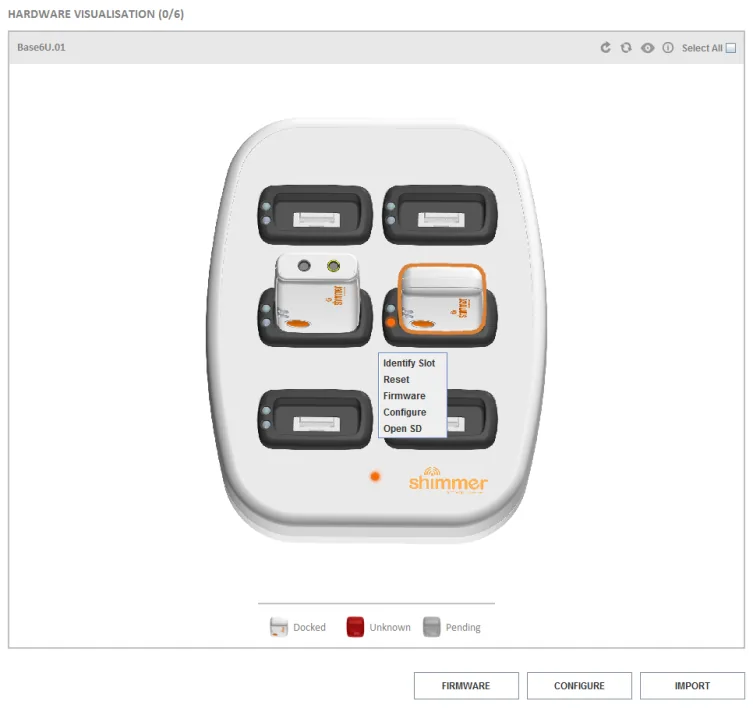
Figure 11‑1 Open SD
11.3. Importing from the backup
Everything imported from SD cards is also kept in the workspace’s Backup folder (Chapter 4). To import from it again, open the Manage Data category of the Application Settings and click Open the backup, choose the backup folder and click Next. The import continues as in Section 6.3, step 2.
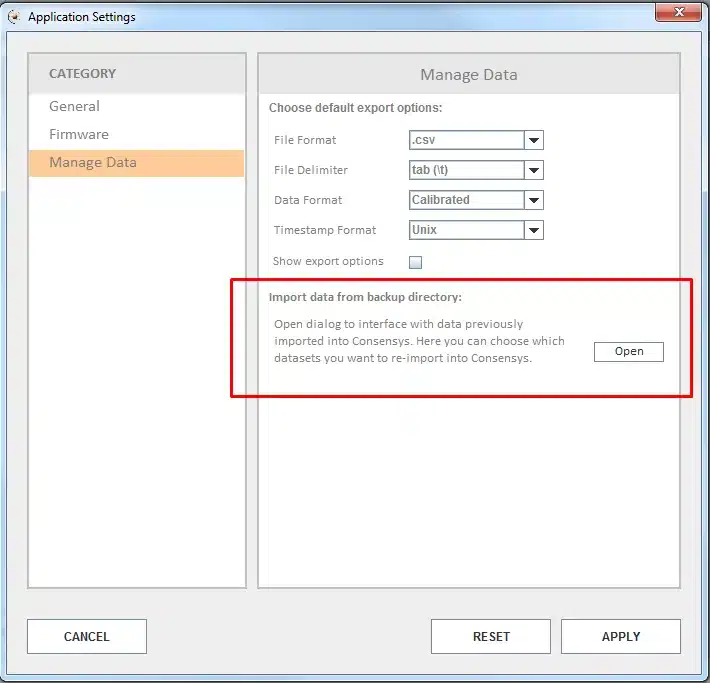
Figure 11‑2 Importing from the backup
11.4. Help
This guide and the Consensys FAQ are opened from Help → User Guide and Help → FAQ. The manuals for all Shimmer hardware are on the Shimmer documentation pages; new users should start with the Shimmer3/3R User Manual.
11.5. PROTO3 Mini on newer Shimmer3 IMU units
A PROTO3 Mini fitted to a newer Shimmer3 IMU (SR31-7 or later) needs its expansion board ID set in Consensys, so that Consensys recognises it, and set back when the board is removed. The steps are in Assembling the PROTO3 Mini Expansion Board in the PROTO3 Series User Guide.
12. Troubleshooting
12.1. Dock and Base problems
Check the relevant sections of this guide and the Consensys FAQ first. If that does not solve it, contact us through our contact page, and include the contents of the workspace’s App Logs folder.
12.2. Recovering a Shimmer
If a Shimmer behaves oddly or locks up when it starts, reprogram its firmware (Chapter 5) with Reload configuration after firmware write unticked. This returns it to its factory default settings, and resets its calibration too: calibrate it again afterwards (Section 5.1).
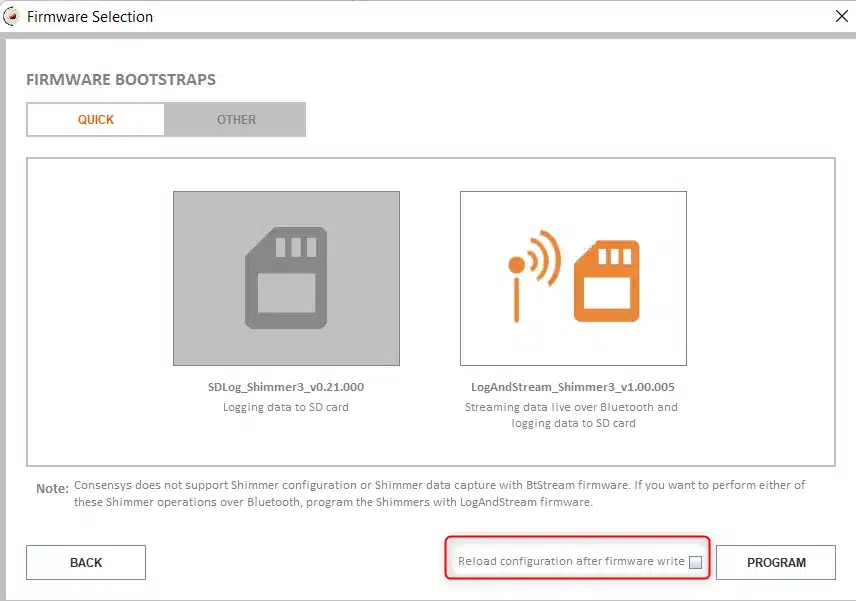
Figure 12‑1 Reprogramming without reloading the configuration
12.3. Problems with recorded data
Check this guide and the Consensys FAQ first. If the problem remains, contact us through our contact page, and include the trial’s database file and, for data imported from SD cards, its backup:
Find the database file: hover over the trial in MANAGE DATA. Its database file name, ten digits followed by
.dbsuch as1435243126.db, is shown. The number is the time the trial was configured, as a Unix timestamp:1435243126is 25 June 2015, 14:38:46 UTC.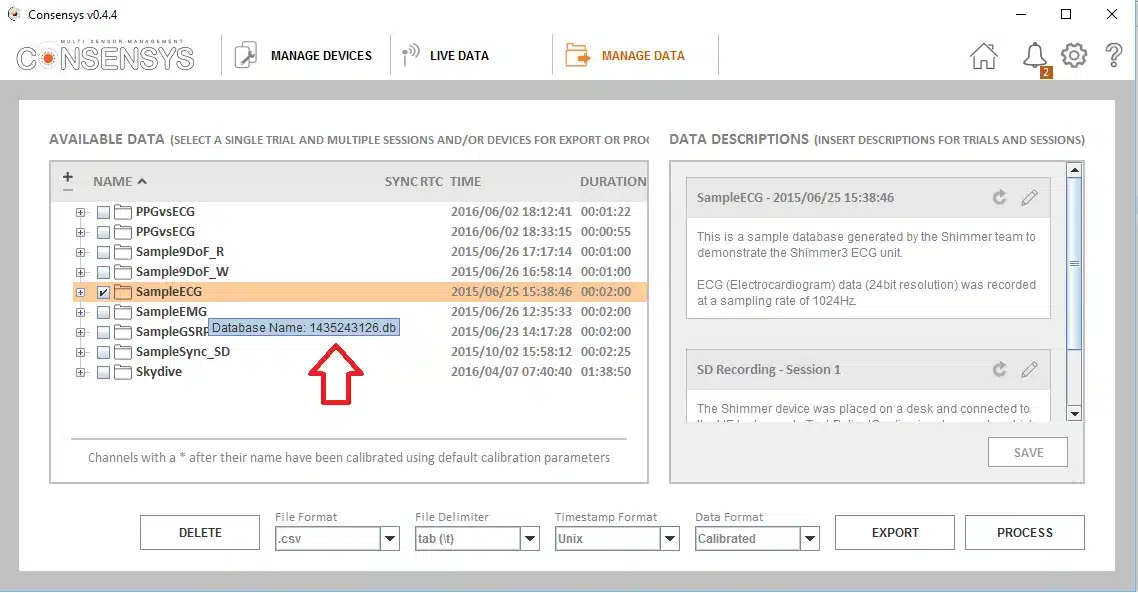
Figure 12‑2 A trial’s database file name
Find the files: open the workspace (Application Settings, then Open). The Database folder holds a folder for each trial, named by that number. The Backup folder holds the binary files copied from the SD cards, by import date; it is not used for data recorded over Bluetooth. Zip the folder for the import date to send it.
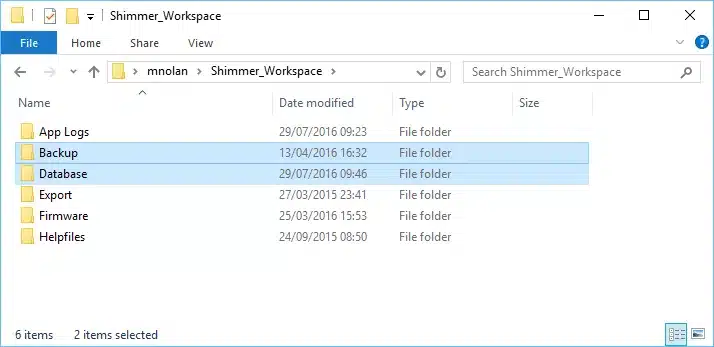
Figure 12‑3 The workspace’s Database and Backup folders
12.4. Running out of disk space
A lot of recorded data can fill the PC’s disk. To archive trials you no longer need in Consensys:
- In MANAGE DATA, find each trial’s database name (Section 12.3).
- In the workspace’s Database folder, find the folder of the same name, and check that it holds a
.dbfile. - Move the folder, without renaming it, to safe storage such as an external disk. Restart Consensys: the trial no longer appears in MANAGE DATA.
- Keep a note of each archived trial: its name, its database name and what study it belongs to.
To see an archived trial again, copy its folder back into the Database folder and restart Consensys.
Legal notices
Legal Notices and Disclaimer
Redistribution IS permitted provided that the following conditions are met:
Redistributions must retain the copyright notice, and the following disclaimer. Redistributions in electronic form must reproduce the above copyright notice, this list of conditions and the following disclaimer in the documentation and/or other materials provided with the document.
Neither the name of Shimmer Research Ltd. nor the names of its contributors may be used to endorse or promote products derived from this document without specific prior written permission.
THIS DOCUMENT IS PROVIDED BY THE COPYRIGHT HOLDERS AND CONTRIBUTORS “AS IS” AND ANY EXPRESS OR IMPLIED WARRANTIES, INCLUDING, BUT NOT LIMITED TO, THE IMPLIED WARRANTIES OF MERCHANTABILITY AND FITNESS FOR A PARTICULAR PURPOSE ARE DISCLAIMED. IN NO EVENT SHALL THE COPYRIGHT OWNER OR CONTRIBUTORS BE LIABLE FOR ANY DIRECT, INDIRECT, INCIDENTAL, SPECIAL, EXEMPLARY, OR CONSEQUENTIAL DAMAGES (INCLUDING, BUT NOT LIMITED TO, PROCUREMENT OF SUBSTITUTE GOODS OR SERVICES; LOSS OF USE, DATA, OR PROFITS; OR BUSINESS INTERRUPTION) HOWEVER CAUSED AND ON ANY THEORY OF LIABILITY, WHETHER IN CONTRACT, STRICT LIABILITY, OR TORT (INCLUDING NEGLIGENCE OR OTHERWISE) ARISING IN ANY WAY OUT OF THE USE OF THIS DOCUMENT, EVEN IF ADVISED OF THE POSSIBILITY OF SUCH DAMAGE.